
Bounces, unsubscribes and complaints reflect the quality of your sends and your subscribers' interest. A high rate hurts the deliverability of all your emails, so it's important to monitor them and act quickly.
In this article:
- Bounce types
- Reasons for bounces
- Contact statuses
- View unsubscribed contacts
- Resubscribe a contact
- Understand the rates to monitor
For a contact who didn't receive an email, see the Guide | Troubleshooting undelivered emails.
Bounce types
Hard bounce: the address no longer exists or never existed. These bounces can affect your account, and the addresses concerned stop receiving your sends. Double opt-in, which asks each new subscriber to confirm their address, helps prevent them.
Soft bounce: the address is temporarily unavailable. After several soft bounces, the address is removed from your sends to avoid complaints and protect your statistics.
Each campaign report details its bounces: under Campaigns > Emails, click View Report, then see the Bounced section of the Contact activity tab.
Reasons for bounces
- Mailbox full: the recipient's inbox is full.
- Address change: the recipient changed address and is notifying senders.
- Auto-reply: the recipient is away (out-of-office message). It's not a real bounce, but it tells you the email won't be read right away.
- Transient bounce: the server hasn't been able to deliver the message yet and keeps trying for about two days. Usually no action is needed.
- Challenge/response: a filter requires the sender to answer a question or take an action before the message is delivered.
- Blocked email: the recipient's server refuses your email (messages such as 550 Message REFUSED by peer or 552 Blocked by filters).
- DNS failure: a DNS problem temporarily prevented delivery.
- Invalid address: the domain doesn't exist or the recipient is unknown (hard bounce).
Contact statuses
Under Audience > Contacts, the Status column shows whether each contact can receive your emails:
- Active: the contact receives your campaigns.
- Unsubscribed: the contact removed themselves from the list, or you unsubscribed them.
- Spam: the contact reported one of your emails as spam (a complaint, or FBL). To resubscribe them, get written proof of their consent and send it to support@yapla.com.
- Pending: the contact hasn't yet clicked the link in the confirmation email (double opt-in). They don't receive any sends until they confirm.
The bounce count and bounce type columns show the bounces recorded for each contact.
View unsubscribed contacts
- Go to Audience > Contacts and choose the list in the left column.
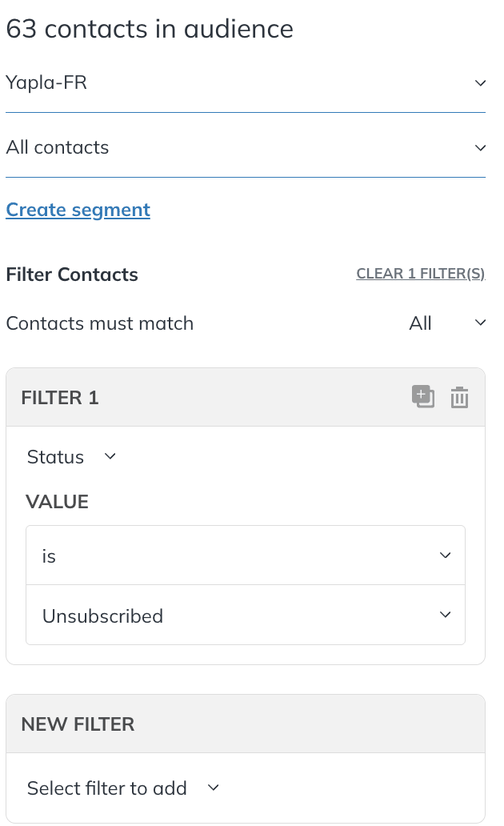
- Under Filter Contacts, select Status, then is and Unsubscribed. The list shows the contacts who unsubscribed or whom you unsubscribed.
- Click a contact to open their record, then the Activity tab to see, among other things, the date they subscribed and unsubscribed.
Resubscribe a contact
Only resubscribe a contact if they asked you to.
- Under Audience > Contacts, click the (+) button at the top right, then Add a contact.
- Choose the list, enter the person's email address and fill in the other fields as needed.
- Check I confirm I have permission, then click Save contact.
Then search for their address in the list: their status is Active again.
Understand the rates to monitor
These rates appear in the Performance tab of each campaign report.
Bounce rate
Total bounces ÷ number of recipients. Hard bounces shouldn't exceed 1%. The rate varies with your sector, how up to date your list is and how often you send.
Unsubscribe rate
Total unsubscribes ÷ number of recipients. An unsubscribe is always better than a complaint: make sure the unsubscribe link appears at the bottom of every email. It's included in templates as the [UNSUBSCRIBE] tag.
Complaint rate
Total complaints ÷ number of emails sent. Aim for 0% to 0.1%, and never exceed 0.25% (1 complaint per 400 emails). A contact who reports your emails as spam is removed from your sends.
Email providers also monitor these figures. Bounce or complaint rates that are too high eventually send your emails to spam, or even get them blocked.