
There are several reasons why a contact might not receive your newsletter. Follow the steps below in order to find the cause and fix it.
In this article:
- Confirm the email was sent
- Check the contact's status
- Check the suppression list
- Check whether the contact used to receive your emails
- Check whether it's a role-based address
- Have other inbox folders checked
- Make sure your domain is authenticated
- Check corporate domain restrictions
1. Confirm the email was sent
- Go to Campaigns > Emails and click View Report to the right of the campaign.
- Open the Contact activity tab, then the Sent to section.
- Search for the contact's address. If it doesn't appear, the email wasn't sent to them: check their status (step 2).
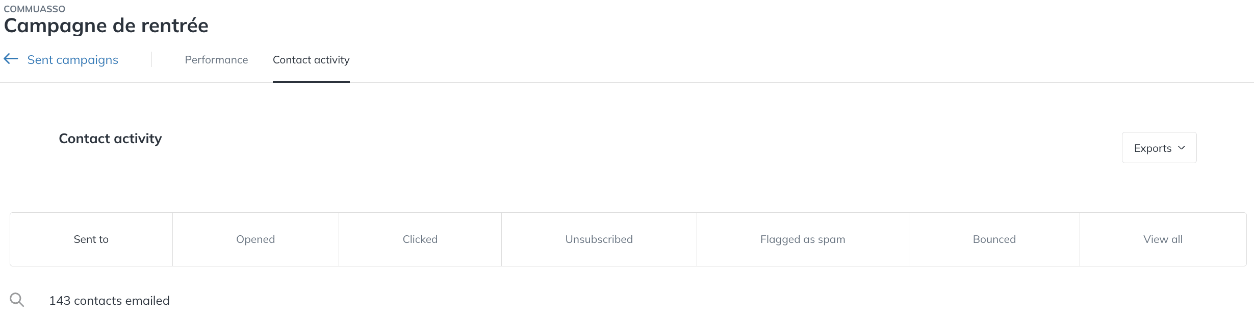
The Unsubscribed, Flagged as spam and Bounced sections of the same tab also show whether the contact unsubscribed, reported the email or whether the send failed.
2. Check the contact's status
Go to Audience > Contacts and search for the contact's address. Only contacts with the Active status receive your emails. The bounce count and bounce type columns also show whether previous sends failed.
- Unsubscribed: the contact removed themselves from the list. You can only resubscribe them if they ask you to. See how to resubscribe a contact.
- Spam: the contact reported one of your emails as spam. Get written proof that they want to receive your emails again, then send it to support@yapla.com.
- Pending: the contact hasn't yet confirmed their subscription by clicking the link in the confirmation email (double opt-in).
- Bounces: a hard bounce means the address is invalid or no longer exists. After several soft bounces, the address also stops receiving your sends.
To learn more about bounce types and their causes, see Newsletters: track bounces, unsubscribes and complaints.
3. Check the suppression list
Go to Audience > Suppression List and check whether the address or its domain is listed. If the person did consent to receive your emails and was added by mistake, click Delete to the right of the address. Manage the Yapla Newsletters suppression list
4. Check whether the contact used to receive your emails
If the contact used to receive your emails, look for what changed: a recent unsubscribe or complaint, a new filtering rule or an automatic forward set up in their mailbox.
5. Check whether it's a role-based address
Role-based addresses (for example info@, sales@, support@) often belong to a group or department rather than a person. They are filtered more strictly and may be excluded by default. If you can prove these addresses consented, write to support@yapla.com.
6. Have other inbox folders checked
Ask the recipient to check their junk folder, the Gmail Promotions or Updates tabs and their trash, in case the email was deleted by mistake.
7. Make sure your domain is authenticated
If you send from your own domain, make sure it's authenticated under Settings > Domains. An unauthenticated domain can cause Gmail, Yahoo or Outlook to block your emails. Add a custom domain for your newsletters
8. Check corporate domain restrictions
If your emails don't reach the addresses of one specific organization, they are probably blocked by its security tools (antivirus, internal filters). Ask that organization's IT department to add your sending domain to its list of allowed senders.
If the problem persists after these checks, write to us at support@yapla.com with the contact's address and the campaign name.