
Attributes are your contacts' information fields: first name, last name, language, member number, etc. They let you personalize your emails with merge tags and create segments.
The attributes of contacts synced from Yapla are created automatically by sync. You can add your own attributes, for example for information from an imported file. Attributes are specific to each list.
In this article:
- Access a list's attributes
- Add an attribute
- Show an attribute in the preference center
- Delete an attribute
- Use your attributes
Access a list's attributes
- Go to Audience > Contacts and click the gear icon at the top right of the contact list. The Manage lists and attributes page opens.
- Under Choose a list to manage, select the list.
- Open the Attributes tab.
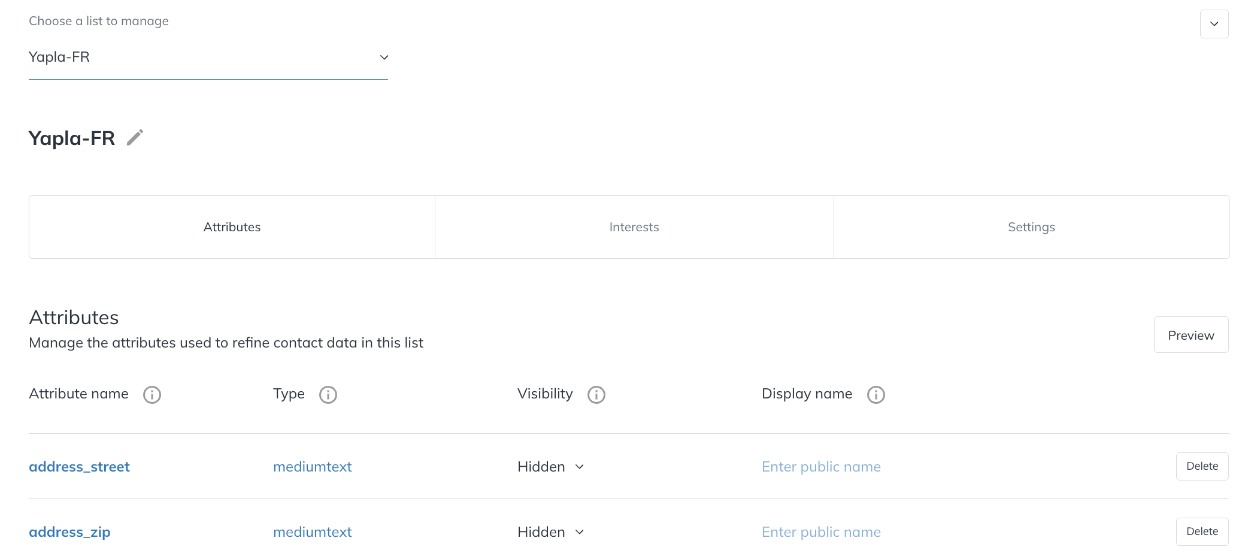
The table shows each attribute of the list:
- Attribute name: the attribute's name, used in merge tags, for example
[firstname]. - Type: the data type (text, number or date).
- Visibility: Visible or Hidden in your subscribers' preference center.
- Display name: the label shown in the preference center.
To leave the page, click Close at the top right.
Add an attribute
The last row of the table is used to create an attribute:
- In the Enter attribute name field, type the attribute's name, for example membership_date. Spaces and accents are removed automatically.
- Choose the type: Text, Number or Datetime (date).
- If needed, choose the visibility and enter a display name (see the next section).
- Click Save.

Choose a short, clear name: it's the name you'll use in merge tags and to match the columns of a file when importing.
Show an attribute in the preference center
The preference center is the page where your subscribers manage their subscription from the link at the bottom of your emails. By default, attributes are hidden there.
- In the attribute's Visibility column, replace Hidden with Visible.
- Click in the Display name column, type the label your subscribers will see, for example Membership date, then click Save.

Without a display name, the attribute's name is shown. To see the result, click Preview: a preview of the preference center opens in a new tab.
If an attribute doesn't appear in the list of merge tags in the email editor, make it visible. Personalize your newsletters with merge tags
Delete an attribute
Deleting is permanent: your contacts' information linked to the attribute is also deleted. Avoid deleting attributes synced from Yapla, such as firstname or member_language.
- Click Delete to the right of the attribute.
- If forms are linked to the list, a message warns you that they may no longer work correctly if they use this field. Click Delete to continue.
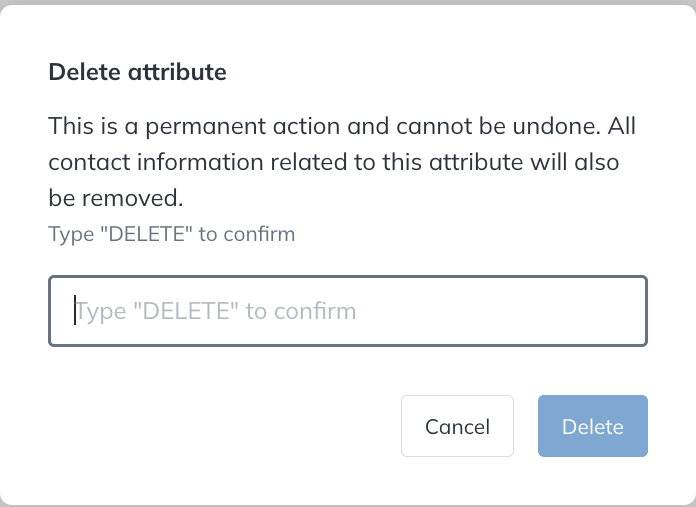
- In the Delete attribute window, type DELETE, then click Delete.
Use your attributes
- When importing: match your file's columns to the list's attributes. Importing contacts to Yapla Newsletters
- In segments: target contacts based on an attribute's value. Creating segments for your newsletters
- In your emails: insert an attribute's value with a merge tag. Personalize your newsletters with merge tags