
Available with the Essentials plan and higher. Some modules require a higher plan: this is then indicated in the section of the module concerned.
This article lists all available modules to help you learn more about each one and discover concrete examples of use.
Each module has its own detailed article linked to it. Click the name of a module in the table of contents below to go directly to its description, an example of use and the link to its full article.
The Website feature lets you easily create pages and link modules to them. A module is a graphical component that manages one or more advanced functions of your account. Each module is linked to a zone of a page and is configured according to your needs.
To add a module, go to Website > Websites, select your site, then open Pages and edit the page you want. In the Structure tab, in Module management mode, click a zone of the page to open its settings window.
The first information to fill in is the Feature (Website, Members, Events, Donations, Contacts, Store or Data), which determines the content the module will retrieve from your database. Then select the module of your choice in the Zone module list: a short description of the module appears under the list. Configure it, then click Save and close.
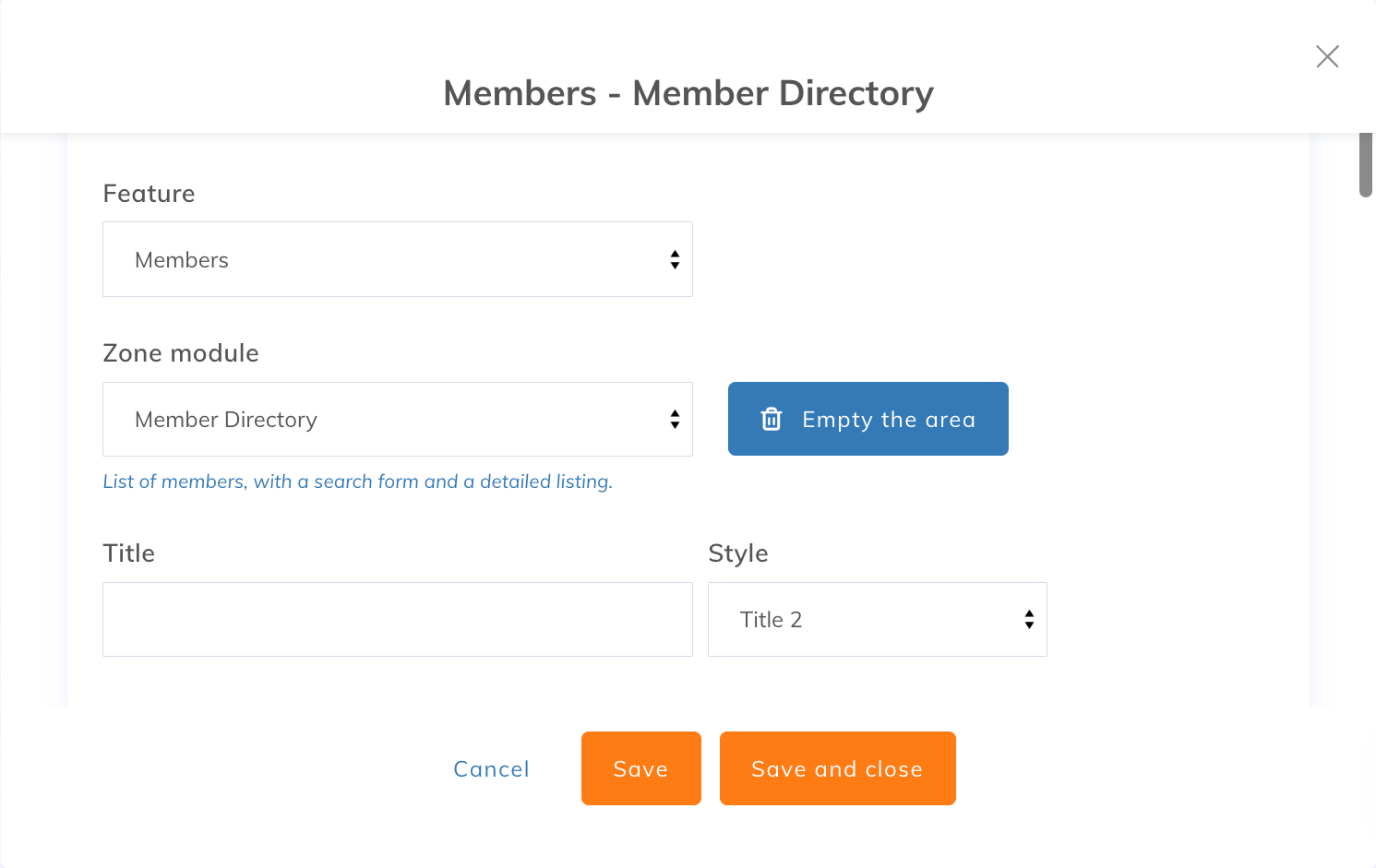
Most modules work in all zone sizes. Some, however, look better in a zone that is 100% wide; this is indicated for each module concerned.
Some settings are common to all zones, whatever the module: zone name, title, visibility based on login or groups, customization of a zone coming from the master page and detail page of articles. They are presented in the article Settings common to all modules. To remove a module from a zone, click Empty the area.
In this article
- Website modules: content and articles
- Website modules: site structure
- Members modules
- Events modules
- Donations modules
- Contacts modules
- Store modules
- Data modules
Website modules: content and articles
These modules display the content you create as articles, or other visual elements of your choice. They are at the heart of building your pages. Select the Website feature to find them.
Single article
Displays the content of a single article, selected from a category. This is the go-to module for a stand-alone block of text such as a mission statement, a message from the president or the description of a service.
➜ Detailed article: Single article
💡 Example: on your home page, display a single article “Our mission” that presents your organization in a few lines. Since the content comes from an article, you update it only once and it stays centralized in your content library.
Featured articles
Displays a preview of several articles from one or all categories, in columns, with or without a link to a details page. You choose the number of articles, the number of columns and the fields displayed (title, image, introduction). By disabling the link to the details page, you can present stand-alone, non-clickable articles.
➜ Detailed article: Featured articles
💡 Example: highlight your three latest news items on the home page, with a “See all news” button leading to your full news page. Another use without a details page: display your sponsors' logos in a row, each logo coming from a separate article.
Multiple articles
Displays a large number of articles from the same category in different display modes (mosaic, blog, etc.), with or without a link to a details page. This module offers advanced options such as pagination at the bottom of the page and search filters by category or keyword.
➜ Detailed article: Multiple articles
💡 Example: create a “Our 2026 news” page that automatically lists all your blog articles, from newest to oldest, with pagination and a category filter so your visitors easily find a specific topic.
Banner
Displays a banner image, chosen from a proposed list or uploaded, with or without text on top (title and slogan). This visual element welcomes your visitors at the top of a page. Place this module in a zone that is 100% wide.
💡 Example: at the top of your home page, a full-width banner shows a photo of your last event, the name of your association and a catchy slogan summarizing your mission.
Plan an image of 1920 × 530 px and keep text and logos in the centre: on mobile, only a central strip about 600 px wide stays visible. See the recommended dimensions.
Slider
Displays several articles as a scrolling slider, from a selected category. This presentation highlights your content in a visual and dynamic way, without taking up too much vertical space on the page.
➜ Detailed article: Slider
💡 Example: present your members' testimonials in a slider: each slide shows a photo, a name and a quote, and visitors scroll through the testimonials one after the other.
Image
Inserts a simple image, with or without a link, an alignment and alternative text. Prepare your image in the right format before uploading it to make it easier to integrate and keep a harmonious page.
➜ Detailed article: Image
💡 Example: add the logo of a major partner in the middle of a page, with a link that opens its website in a new tab.
Custom Content
Opens an HTML editor to add content directly in the zone, without using an article. This module is suited to one-off content specific to a single page.
This content is not stored in your article library: if it is deleted, it is permanently lost.
➜ Detailed article: Custom Content
💡 Example: insert a schedule table or a custom code block on a specific page, when the content is unique and will not be reused elsewhere on the site.
Contact Form
Displays a form that lets your visitors send a message to a predefined email address, directly from your site.
➜ Detailed article: Contact form
💡 Example: on your “Contact us” page, place a contact form that forwards messages to info@yourassociation.org, without publicly exposing this address to spam robots.
Social media links
Displays the activity feed of a Facebook page directly on your site.
➜ Detailed article: Social Media Module
💡 Example: embed your Facebook page feed in a side column so your visitors see your latest posts without leaving the site.
Custom object display
Available with the Premium plan and higher.
Lets you create a display template from scratch, not linked to a standard module, to fully customize how your content is presented. This module is intended for users comfortable with advanced customization. Place it in a zone that is 100% wide.
➜ Detailed article: Customize the display of your content using templates
💡 Example: design a custom display template to present your continuing education courses with a specific layout that no standard module offers.
Website modules: site structure
These modules make up the common framework of all your pages. They are most often configured in the master page so they are identical from one page to another. Select the Website feature to find them.
Header
Displays the header of your site: logo, links to social networks, login or sign-in button. This zone sits at the top of each of your pages.
➜ Detailed article: Header
💡 Example: in your master page, configure a header that shows your logo on the left, the menu in the centre and a clearly visible “Become a member” button on the right, automatically present on all your pages.
Menu
Displays a navigation menu or submenu. The menu is built automatically from the pages you create and their order.
➜ Detailed article: Add a menu on my website
💡 Example: organize your main menu with an “About” tab that opens a submenu to “Our mission”, “Our team” and “Our history”.
Footer
Displays the footer with your contact information and other recurring information. Like the header, it appears at the bottom of all your pages. Place this module in a zone that is 100% wide.
➜ Detailed article: Footer
💡 Example: display your address, phone number, social media icons and a link to your privacy policy in the footer.
Breadcrumbs
Automatically displays the path the visitor took to reach the current page. This navigation aid helps visitors find their way in the site structure. Place this module in a zone that is 100% wide. Breadcrumbs can also be enabled directly in the Menu module.
➜ Detailed article: Add a menu on my website
💡 Example: on a deep page such as Home › Training › Spring workshop, the breadcrumbs let the visitor return to the Training section in one click.
Login
Displays a login module allowing members to sign in, with or without a link to a details page.
➜ Detailed article: Allow members and non-members to log in to your website
💡 Example: add a login block on a restricted home page so your members quickly access their personal space as soon as they arrive on the site.
User Area
Offers the same area and the same settings as the Member Area module of the Members feature: login, joining or renewing a membership, profile and history.
If your account uses the Members feature, add the Member Area module instead: password emails, the membership page and the Become a member and Renew my membership links lead to the page that contains that module. To let non-member contacts log in, use the Login module.
➜ Detailed article: Add the Member Area module to your website
Site Language Toggle
Available with the Plus plan and higher.
Adds a link that lets visitors change the display language of the site. Your account must have at least two languages enabled to use this function.
➜ Detailed article: Create a bilingual website
💡 Example: offer a bilingual site by displaying “FR | EN” in the header; visitors switch from one language to the other in a single click.
System message
Displays certain site messages, only once, right after a redirection:
- access denied to a page reserved for members or for certain groups;
- failed login through single sign-on (SSO);
- registration to an event with no rate available;
- cancelled or failed payment;
- member area confirmations, for example a document added or a change to the organization.
When there is no message, the module does not appear on the page. Form errors and payment, donation or membership confirmations are displayed directly in their own module.
This module has no settings. Place it once in the master page, under the banner, so that messages are displayed on every page.
💡 Example: a visitor who is not logged in and opens a page reserved for members is redirected to the login page, where the module tells them the page is reserved for members.
Members modules
These modules draw on your member database to display directories, a logged-in area or dynamic lists. Select the Members feature to find them.
Member Directory
Available with the Plus plan and higher.
Displays the list of your members, with a search form and a detailed record for each member. The content updates automatically as your member database evolves. The module's global search option lets you choose one or more fields to filter a member search. Use a zone of 66% or more for this module.
➜ Detailed article: Member Directory
💡 Example: create the “2026 Member directory” page of a professional association, where the public searches for a member by name, region or specialty and views their detailed record. Since the directory is connected to the database, a new member appears automatically as soon as they join.
Member Area
Displays the member section: registration form, login, profile and membership management. This module gives your members their own self-service area. Place it in a zone that is 100% wide.
➜ Detailed article: Adding Member Area module to your website
💡 Example: give your members a “My account” area where they renew their membership, update their address and download their receipts, without any intervention on your part.
Featured members
Automatically displays the latest active members who joined, according to the number you set. Place this module in a zone that is 100% wide.
➜ Detailed article: Featured Members
💡 Example: welcome your five newest members on the home page, with their name and photo, to show the energy and growth of your community.
Directory
Displays a member search field on any page of your website, for example the home page. The text entered is passed to the member directory of the page chosen in Redirect Directory Page, which displays the results. Place this module in a zone that is 100% wide.
➜ Detailed article: Member directory
💡 Example: place a search bar on your home page so visitors instantly find a member by name and land directly on the results in the directory.
Events modules
These modules display your activities and their registration forms. Select the Events feature to find them.
Activities section
Available with the Premium plan and higher.
Displays one or more upcoming activities, with a details page for the sessions and a registration form.
This option is separate from the conference mode.
💡 Example: present your fall workshop series; visitors view the sessions offered and register for the one that suits them.
Events Section
Displays one or more upcoming events, each with its details page and registration form. This central module handles ticketing and online registrations. Place it in a zone that is 100% wide.
➜ Detailed article: Events Section
💡 Example: on your “Events” page, list your annual conference and workshops; each visitor views the details of an activity, chooses a rate and pays for registration online in the same transaction.
Event schedule
Available with the Premium plan and higher.
Displays the schedule of an event's workshops, by day and by time slots. Select the event to present in the module settings. This module is part of the conference mode.
💡 Example: publish the full schedule of your annual conference, day by day, so participants can plan which workshops they will attend.
Featured Events
Displays a short list of upcoming events, with a link to the details page. This module gives an overview of your next activities without showing the entire program.
➜ Detailed article: Featured Events
💡 Example: on the home page, display your next two events with a “See the full program” button that leads to your complete Events page.
Donations modules
These modules present your fundraising campaigns and their forms. Select the Donations feature to find them.
Donation Section
Displays one or more donation campaigns, with a donation form and a results thermometer. Place this module in a zone that is 100% wide.
➜ Detailed article: Donation Section
💡 Example: launch a “Holiday campaign” page with a thermometer showing progress toward your $10,000 goal; each donation visibly brings the bar closer to the goal and encourages visitors to contribute.
Participants Section
Available with the Plus plan and higher.
Displays the Participants Section module, used in particular for peer-to-peer donation campaigns.
➜ Detailed article: Participant Section
💡 Example: in a peer-to-peer fundraiser, each participant has their own page to collect donations from their network for your cause.
Donation Thermometer
Displays the thermometer of one donation campaign or of all your campaigns, without the donation form. You can notably choose whether to include pledges and set the goal displayed.
➜ Detailed article: Donation Section
💡 Example: display the thermometer of your annual campaign on your home page to show, at all times, the donations collected compared to the goal.
Contacts modules
These modules rely on your contacts to collect subscriptions or run groups. Select the Contacts feature to find them.
Newsletter subscription
Collects subscriptions to your newsletters directly from your site and automatically feeds your mailing list.
➜ Detailed article: Newsletter subscription
💡 Example: add a “Stay informed” block at the bottom of your home page; everyone who subscribes automatically joins your newsletter list, ready to receive your next communications.
My groups
Available with the Premium plan and higher.
Creates a logged-in page for members based on their groups. This module works with custom groups and system groups, and determines which group has access to which function. Place this module in a zone that is 100% wide.
➜ Detailed article: My Groups module
💡 Example: give the members of your board of directors a private area where they find the documents and discussions specific to their group.
Store modules
These modules allow online sales and payment for your products and registrations. Select the Store feature to find them.
List of products
Displays the items for sale in your online store. Add this module to a page dedicated to your store. It works with the Cart module, which is not recommended on the same page.
➜ Detailed article: Create an online store (Beta)
💡 Example: create a “Store” page that presents your promotional products, such as t-shirts or mugs featuring your association's logo.
Cart
Displays the purchase module and lets visitors add items from a category to the cart. It allows several items to be bought in a single transaction, in the Members, Events, Donations, Data and Store features. Place this module in a zone that is 100% wide.
➜ Detailed article: Enabling the Shopping Cart
💡 Example: the cart lets a visitor pay for their annual membership and their conference registration at once, rather than making two separate payments.
Data modules
These modules display the forms and objects created in the Data feature. Select the Data feature to find them.
Entry form
Available with the Plus plan and higher.
Displays a custom form powered by the Data feature. Place this module in a zone that is 100% wide.
➜ Detailed article: Create a contact form with Data
💡 Example: publish an application form for an annual award; responses are automatically collected in your Data feature, ready to be exported and analyzed.
Directory
Displays the records of an object from the Data feature as a searchable directory. You choose the object, the statuses to display, the type of search (global search or form search) and the sort order of the results.
This module has no connection with the Directory module of the Members feature, which has the same name.
💡 Example: publish the directory of partner organizations entered in Data, which visitors filter by region or sector of activity.
Each module has its own configuration options. See the corresponding detailed article to discover all its settings and adapt it precisely to your needs.