
Available with the Essentials plan and higher.
The Menu module displays the navigation menu of your website. It is built automatically from the list of your pages: the order and levels of your pages determine the order and submenus of the menu. The same module can also display breadcrumbs.
Configure the menu in the master page of your website. It is then displayed on all linked pages. See the article How the master pages work.
In this article
Configure the Menu module
In the configuration window of a zone, select the Website feature, then Menu in the Zone module list. To learn how to open this window, see the article List of modules in the Website feature.
In the Module Configuration section, define the following settings:
- Show type:
- Horizontal: pages are displayed side by side and subpages open in a drop-down list. This type suits the main menu, under the header.
- Horizontal display: variant of the horizontal menu whose drop-down list also presents the article associated with the page. This article is chosen in the Configuration tab of the page, Article associated with the page field.
- Vertical: pages are displayed one below the other. This type suits a side menu, in a column.
- First level displayed (1 or 2) and Last level displayed (1, 2 or 3): page levels presented in the menu. For example, a first level of 1 and a last level of 2 display the main pages and their direct subpages.
Click Save and close.
Organize pages and submenus
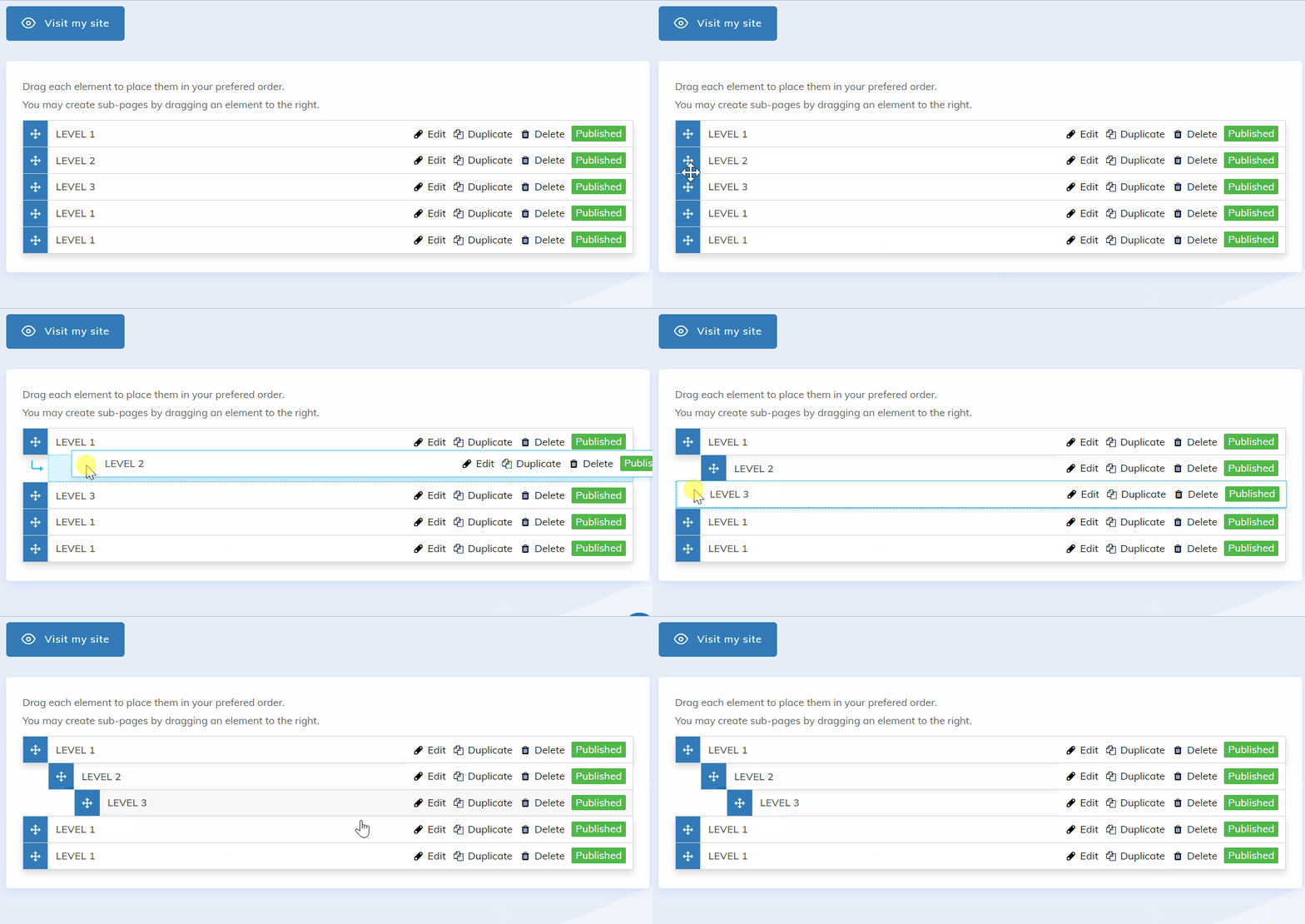
The menu is organized in the list of pages of your website, under Website > [your website] > Pages.
- Change the order: drag a page up or down.
- Create a submenu: drag a page to the right, under another page. It becomes a subpage of that page. The menu accepts up to three levels.
To group subpages under a menu heading that cannot be clicked, create a page of the Page Separator type and place the subpages under it. To keep a page accessible through its link without displaying it in the menu, check Don't display this page in your web site menu in the Configuration tab of the page.
Display breadcrumbs
Breadcrumbs show the path taken to reach the current page, for example Home > News > Title of the news item. They help visitors find their way and quickly return to a parent page.

Two methods let you display them:
- In the Menu module: check Enable breadcrumbs in the module configuration. The breadcrumbs are displayed with the menu.
- In their own zone: select the Website feature, then the Breadcrumb module. This method lets you place the breadcrumbs elsewhere than in the menu, for example under the banner.
In both cases, three options are available:
- Show page separator: includes pages of the Page Separator type in the path.
- Homepage: always starts the path with a link to the homepage.
- Last element: also displays the current page at the end of the path.
Add the breadcrumbs to the master page to display them on every page of the website.