
An invoice is cancelled from the item that generated it: a membership, an event registration or a donation. When you cancel, a window offers several options. Your choice determines the invoice status, any refund and the accounting entries.
In this article
- Where to cancel an invoice
- Cancellation window options
- Effect on the invoice
- Choosing the right option
- Refunding a payment
Where to cancel an invoice
- Members: go to Members > Memberships, click View membership on the membership row, then the Membership information sheet tile. Then click Available actions > Cancel membership. For details, see Cancel a membership.
- Events: go to Events > Events, open the event, then the Registration tile. Click the registration, then Available actions > Cancel subscription. For details, see Cancel an event registration.
- Donations: go to Donations > Campaigns > your campaign > Donations received, click the donation, then Available actions > Cancel donation and confirm. For details, see Cancelling and refunding a donation.
- Data: a payment linked to the Data application cannot be cancelled, but an item that is not linked to a payment can be. See Delete an item in the Data application.
Cancelling a membership requires special attention when organizations or families are activated. See the section Delegate or organization representative.
Cancellation window options
The options offered depend on the invoice status.
Invoice awaiting payment
When the payment has not yet been received (for example, an expected cheque), choose Cancel without refund, then one of the following two options:
- Cancel the bill and adjust accounting (selected by default): the invoice is cancelled, its balance goes to zero and the pending payment is cancelled.
- Cancel without creating a credit note and accounting entries: the membership or registration is cancelled, without a credit note or cancellation accounting entry.
Also enter the cancellation date.
The invoice changes to Canceled when no other item remains on it.
Paid invoice
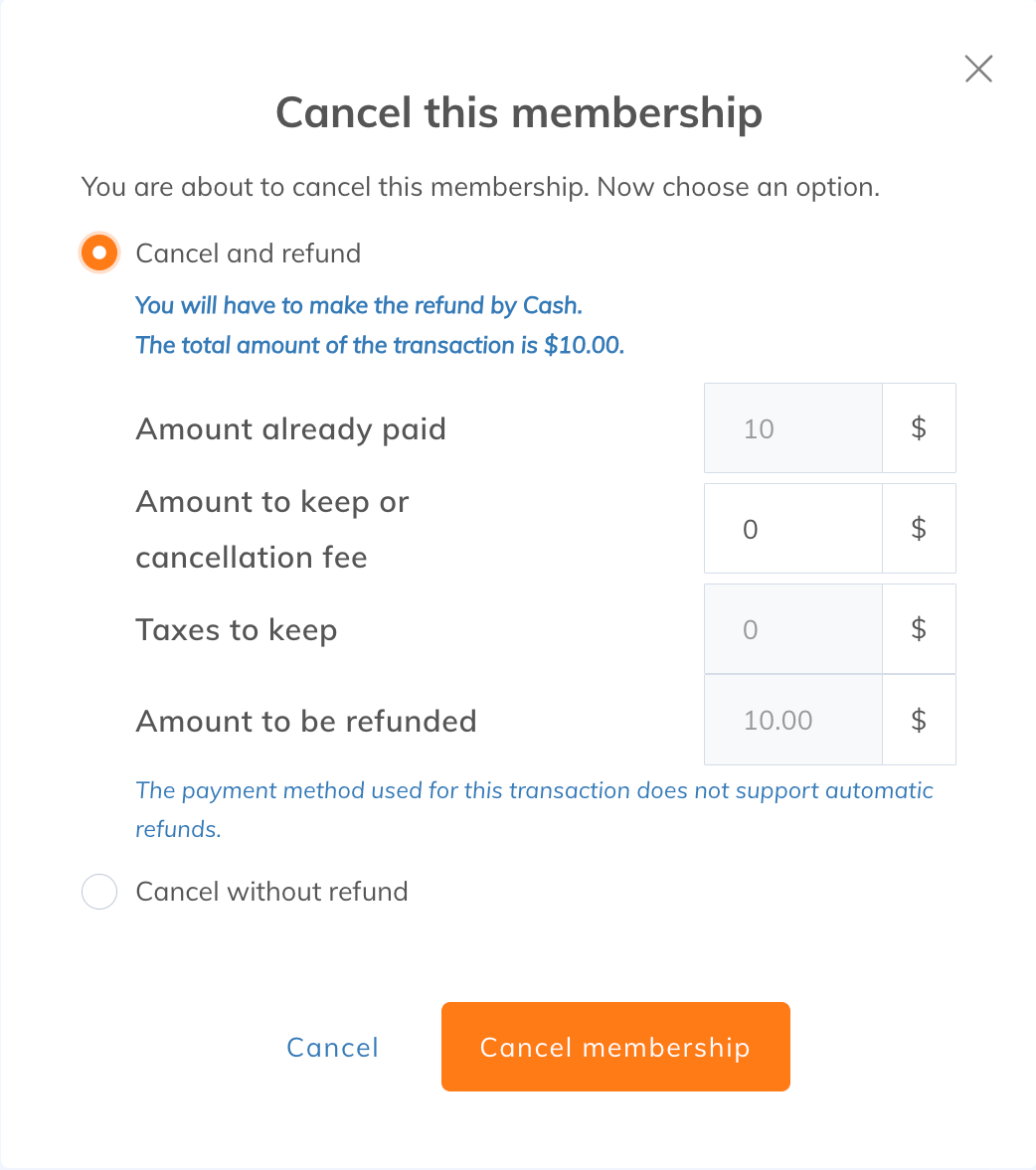
- Cancel and refund: the window shows the Amount already paid and lets you enter the Amount to keep or cancellation fee. The Taxes to keep and the Amount to be refunded are calculated automatically. A credit note for the refunded amount is created, and the original invoice keeps the Paid status.
- Cancel without refund: the membership or registration is cancelled and the amount paid is kept. Depending on the case, the window then offers Create a credit note of zero and adjust accounting (a zero credit note is created and the accounting is adjusted) or Cancel without creating a credit note and accounting entries. The zero credit note option is not offered in every case, notably when the invoice includes taxes.
Effect on the invoice
| Situation | Option chosen | Invoice status |
|---|---|---|
| Membership awaiting payment | Cancel the bill and adjust accounting | Canceled, zero balance |
| Membership awaiting payment | Cancel without creating a credit note and accounting entries | Balance due (the payment remains pending) |
| Registration awaiting payment | Either option | Canceled, zero balance |
| Paid membership or registration | Cancel without refund | Paid |
| Paid membership or registration | Create a credit note of zero and adjust accounting | Paid; a zero credit note is created |
| Paid membership | Cancel and refund | Paid; a credit note for the refunded amount (amount paid minus the cancellation fee and its taxes) is created |
For a membership awaiting payment, the Cancel without creating a credit note and accounting entries option leaves the invoice in Balance due status. To cancel the invoice as well, choose Cancel the bill and adjust accounting: once the membership is cancelled, the invoice can no longer be cancelled.
A paid invoice always keeps the Paid status. After a cancellation without refund, the amount received is kept. After a cancellation with refund, the refund appears in a separate credit note, listed with the invoices with a negative amount.
Choosing the right option
- The payment has not been received and will not be: choose Cancel the bill and adjust accounting. The invoice and the pending payment are cancelled.
- The amount paid must be refunded, in full or in part: choose Cancel and refund.
- The amount paid is kept: choose Cancel without refund.
- The cancellation must not change the accounting: choose Cancel without creating a credit note and accounting entries. No credit note or cancellation entry is created; the accounting treatment of the cancellation is then handled separately.
Refunding a payment
Credit card payment
An automatic refund is only possible if your account has sufficient funds to refund the transaction.
For a credit card payment, the window shows the commission amount for the transaction. You can apply a cancellation fee, for example to avoid refunding the equivalent of the commission.
Cancellation fees are available with the Plus plan and higher.
Other payment methods
Automatic refunds only apply to credit card payments. For a cheque, a bank transfer or cash, the window indicates the payment method to use for the refund: make the refund yourself to the person.