
When a member no longer wishes to belong or a membership was purchased by mistake, you can cancel it from the administration.
In this article
- Cancel a member's membership
- Choosing the cancellation option
- Delegate or organization representative
Cancel a member's membership
- Go to Members > Memberships, search for the member, then click View membership on the membership row. From the member's file, you can also click the Current membership tile.
- Click the Membership information sheet tile.
- Click Available actions > Cancel membership.
- In the Cancel this membership window, choose an option, then click Cancel membership.
Choosing the cancellation option
Membership awaiting payment
Choose Cancel without refund, then:
- Cancel the bill and adjust accounting (selected by default): the membership, its invoice and the pending payment are cancelled.
- Cancel without creating a credit note and accounting entries: the membership is cancelled, but the invoice remains in Balance due status and the payment remains pending.
For a payment that will not be received (a cheque that was never sent, for example), choose Cancel the bill and adjust accounting: once the membership is cancelled, the invoice can no longer be cancelled.
Paid membership
- Cancel and refund: enter the amount to keep or the cancellation fee; the taxes to keep and the amount to be refunded are calculated automatically. A credit note for the refunded amount is created and the original invoice keeps the Paid status.
- Cancel without refund: the membership is cancelled and the invoice keeps the Paid status. Depending on the case, the window also offers Create a credit note of zero and adjust accounting, which creates a zero credit note.
For the effect of each option on the invoice and the accounting, see Cancel an invoice. For a credit card refund, see Refund a membership on Yapla.
Delegate or organization representative
Delegate
After cancelling a delegate's membership, also remove this member from the organization.
Representative
Before cancelling a representative's membership, remove them from the organization: in the organization's file, click the X at the end of their row.
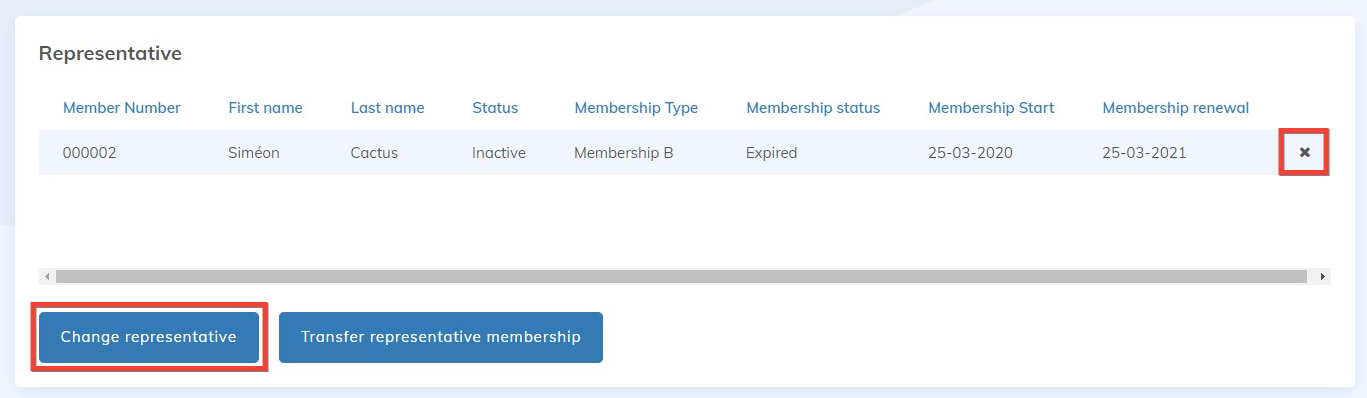
Rather than simply removing the representative, replace them with another member of the organization. See Changing Representative.
Once the representative has been removed, cancel their membership by following the steps above.
Delegate membership status is synchronized each night with the status of the representative's membership. Always remove the representative from the organization before cancelling their membership.