
Two-factor authentication, also known as double authentication, two-step verification or 2FA, adds extra protection to your account. After your password, you are asked for a one-time code: even if someone knows your password, they cannot log in without this code.
In this article
- Install an authenticator app
- Activate 2FA for your user
- Log in with 2FA
- Make 2FA mandatory for the whole team
Install an authenticator app
An authenticator app is an app on your phone that displays a 6-digit code renewed every 30 seconds. This code is neither a password nor a code sent by email: the app generates it itself, even without an internet connection.
Any app that generates these codes (also called TOTP codes) will work. The most widely used are free:
- Google Authenticator: iPhone and Android
- Microsoft Authenticator: iPhone and Android
Your password manager can often generate these codes too: in that case, there is no other app to install.
Install the app on your phone before activating 2FA.
Activate 2FA for your user
- Click your initials or photo in the top right corner of the screen, then click Account security.
- Click Activate double verification. A QR code appears.
- In the authenticator app, add an account (often Add or Scan QR code), then scan the QR code. A Yapla entry appears in the app, with a 6-digit code.
- Enter this code in Yapla, then click Continue.
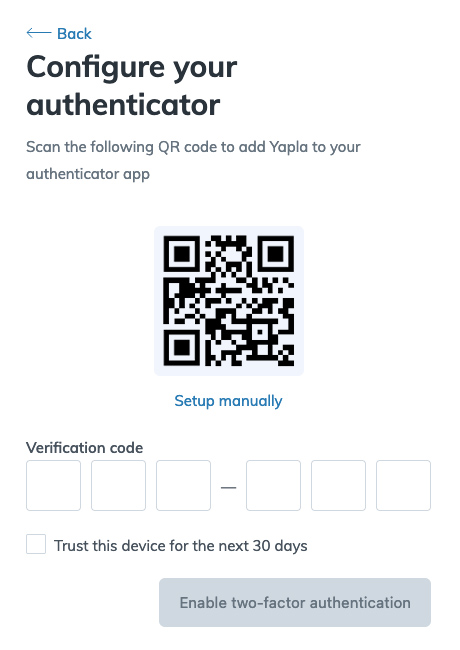
The code changes every 30 seconds. If it is rejected, wait for the next code and try again.
Can't scan the QR code?
Below the QR code, click Set up manually. A key made up of letters and numbers appears.
- In the app, add an account manually (without scanning).
- Paste or enter the key, then save the account.
- Enter the 6-digit code shown by the app in Yapla.
Download your emergency codes
Once setup is complete, download your emergency codes: this step is required before you can access the platform. These codes let you log in if you no longer have access to your authenticator app.
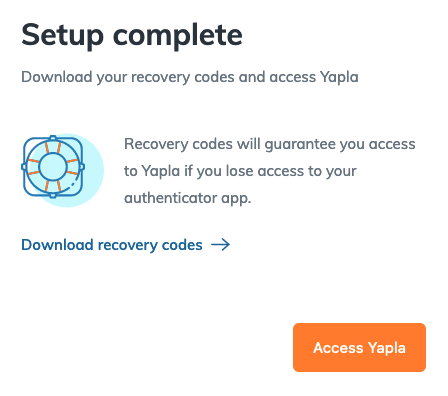
Keep your emergency codes in a safe place and keep the app installed on your phone. Without either, you will no longer be able to get a code to log in.
Log in with 2FA
Each time you log in, after your password, open the app and enter the code shown next to Yapla.
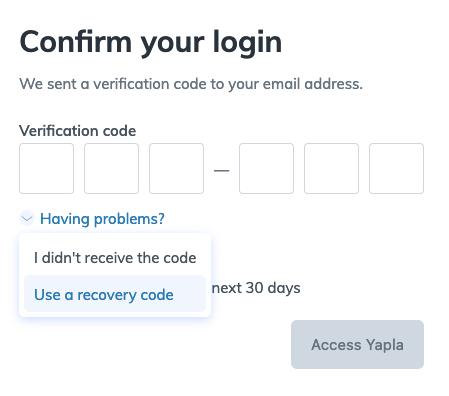
If you don't have access to your app, click Need help, select Use emergency code, then enter one of the emergency codes you downloaded.
Make 2FA mandatory for the whole team
Go to Settings > Users and licenses, click the Two-factor authentication tab, then turn on the switch. All users will then have to use 2FA from their next login.
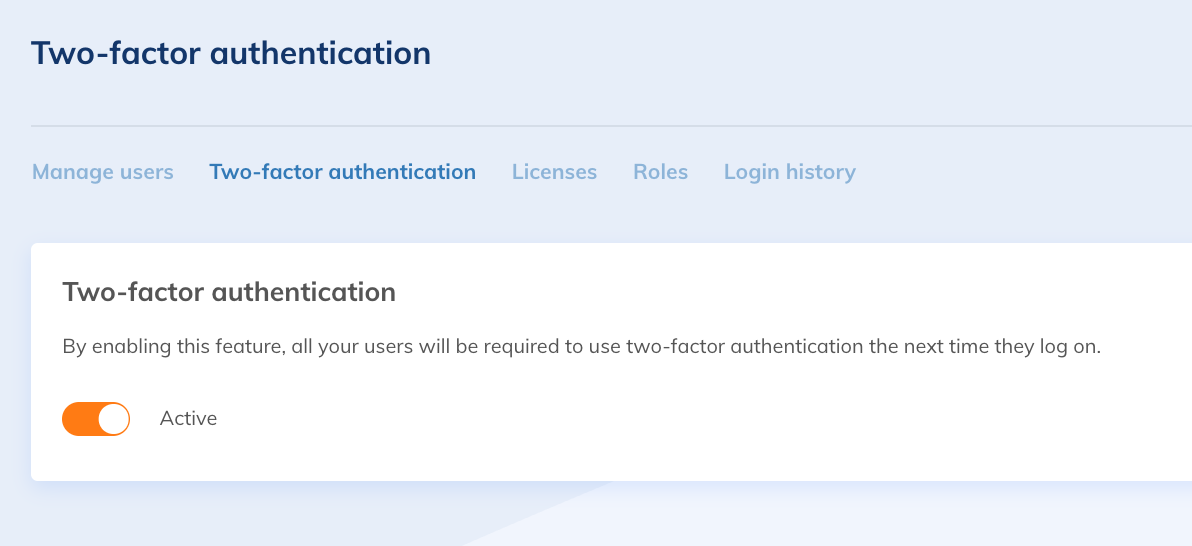
The Authentication (2FA) column of the users list shows whether 2FA is enabled for each user.