
Available with the Premium plan.
A payment link lets you collect payment for any invoice with the Balance due status, whatever the feature it comes from: membership, donation, event registration or other. The person receives an email with a link to a payment page and pays the invoice online, without logging in to a member area.
In this article
Customize your payment page
Set up the page where the person will pay before you activate the feature and send a first link.
- Go to Payments > Settings, then click the Web page tile.
- Customize the page: header image, logo, main color and font. Click View page to preview it.
- Click Save at the bottom of the page.
The payment page must be saved at least once. Without this save, payment links do not work.
Activate the payment link
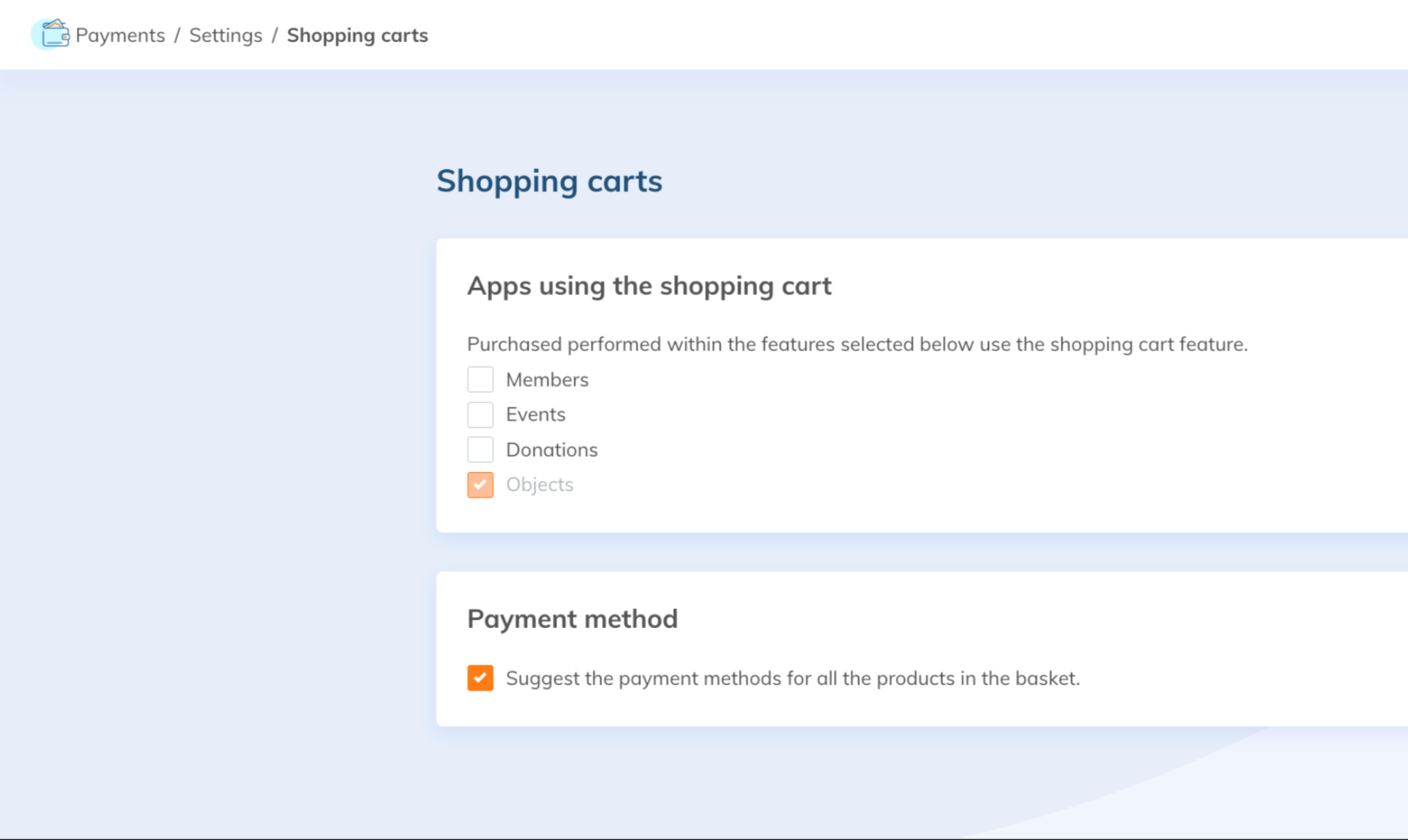
Go to Payments > Settings > Shopping carts. Under Apps using the shopping cart, select the features for which you want to send payment links (Members, Events, Donations, Objects), then click Save.
Send a payment link
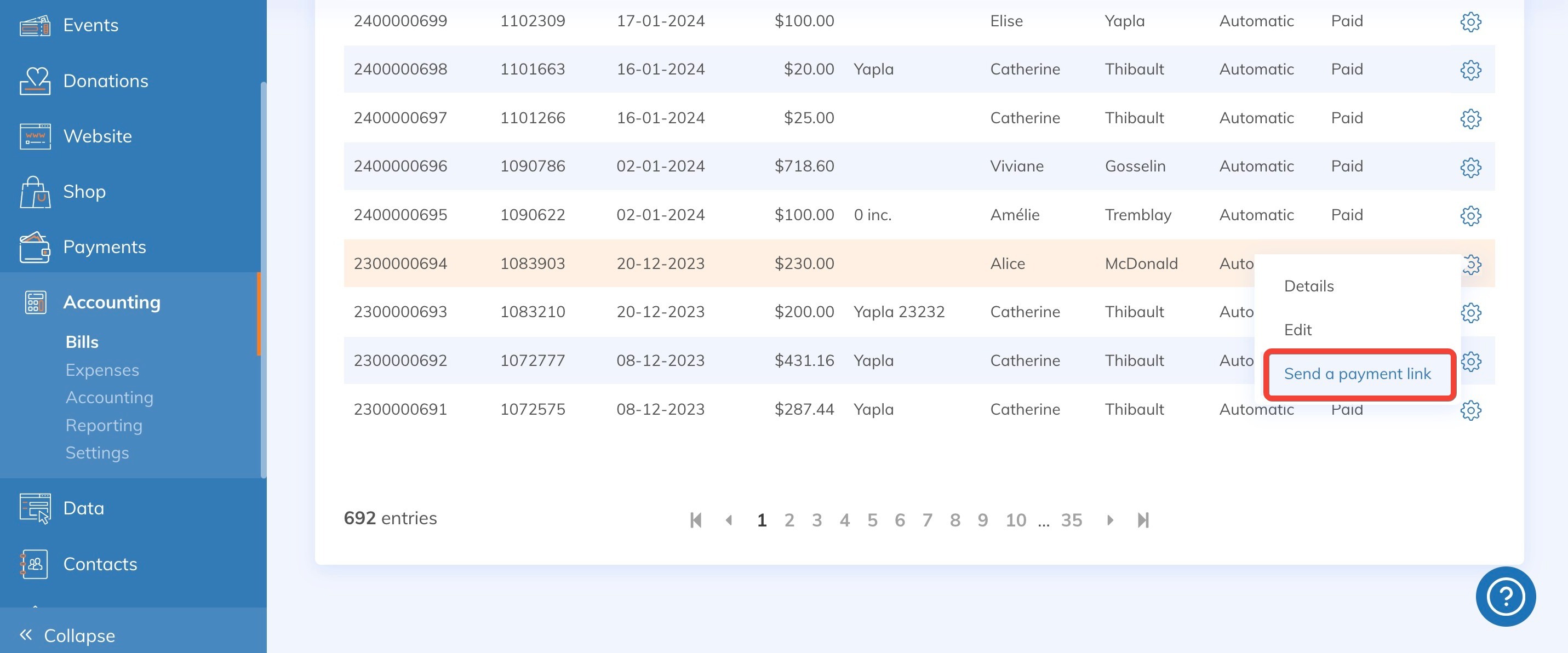
Under Accounting > Bills, click the cogwheel of an invoice with the Balance due status, then click Send a payment link.
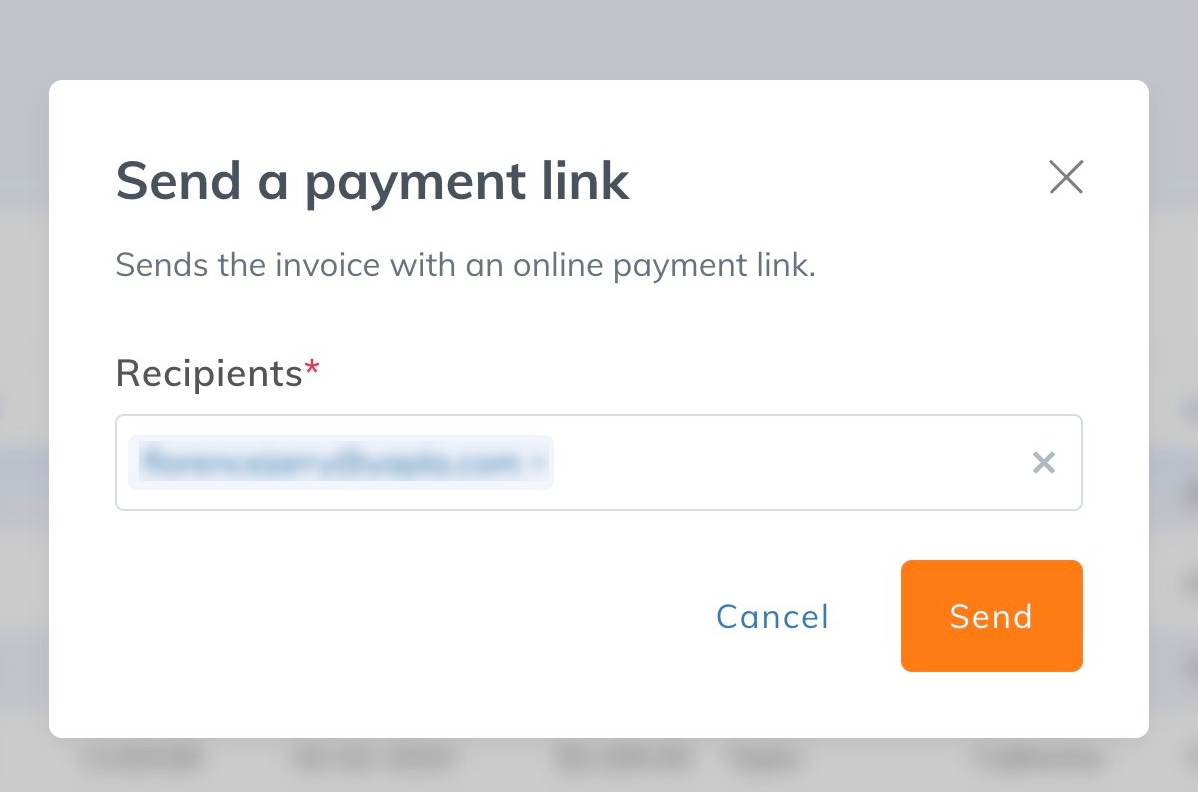
In the Send a payment link window, check the recipient. You can add others, for example an administrator. Then click Send.
A confirmation appears. The recipients receive the invoice with a link to the payment page, where they can pay online.