
Available starting with the Premium plan.
Ticket books let your members buy prepaid tickets for your events with their membership or renewal. You set the number of tickets and the price of each book, and the tickets remain valid until the membership ends. Your members then use these tickets to pay for their registrations.
In this article
- Activate ticket books
- Create a ticket book
- Offer a ticket book with a membership type
- Accept tickets for an event
- Pay for a registration with tickets
- Manage a member's tickets
Activate ticket books
- Go to Members > Settings > Settings, then click the Advanced functions tab.
- In the Tickets section, check Offer ticket books when purchasing a membership.
- Click Save.
Create a ticket book
- Go to Members > Settings > Membership settings, click the Tickets tab, then click Add tickets.
- Fill in the form:
- Name: the name of the book, for example "Book of 10 tickets".
- Description: optional, it appears in the member's form.
- Number of tickets: the number of tickets included (at least 1).
- Fixed price: the Price per ticket stays the same, whenever the purchase is made.
- Variable price: the price changes according to the time of year. Click Add for each amount.
- Accounting: the income account, the project and the taxes, as needed.
- Click Save.
A ticket book can have a price of $0, for example to offer tickets with the membership. The event's consumption mode must then be set by number of tickets (see Accept tickets for an event).
Offer a ticket book with a membership type
- Go to Members > Settings > Membership Types, open the membership type, then click the Tickets tab.
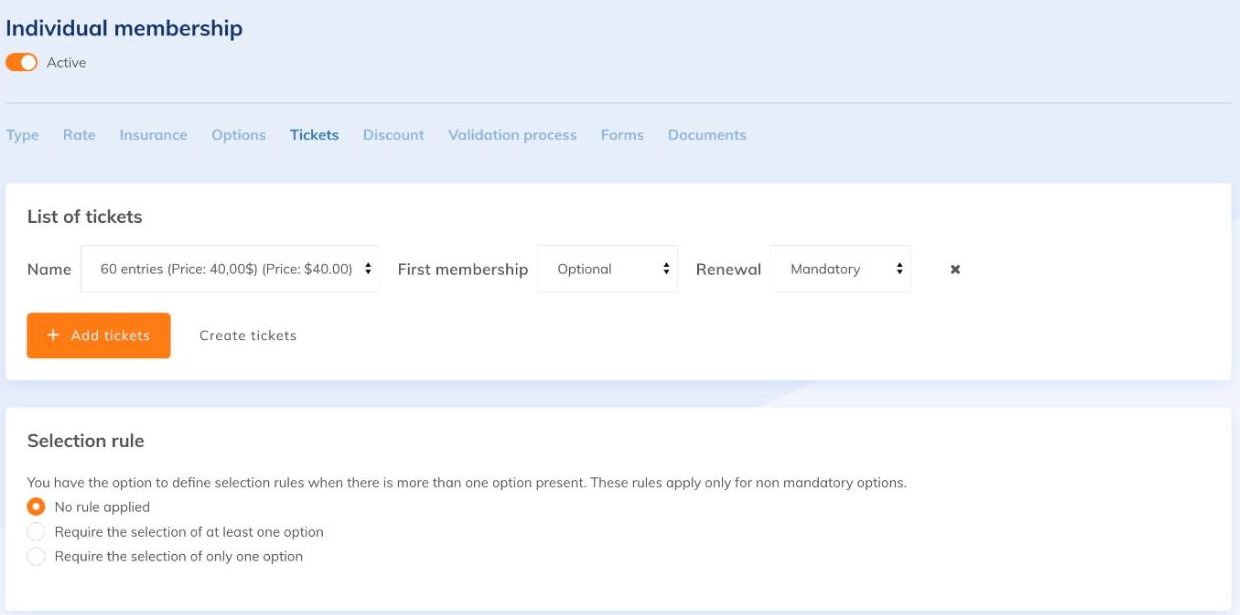
- Click Add tickets, then choose the book in the Name list. The Create tickets link leads to the page for creating ticket books.
- For First membership and for Renewal, choose how the book behaves:
- Not Applicable: the book is not offered.
- Mandatory: the book is added automatically to the membership and cannot be removed.
- Optional: the member chooses whether to buy the book.
- If you offer several books, choose the Selection rule: No rule applied, Require the selection of at least one option or Require the selection of only one option. These rules apply only to optional books.
- Click Save.
In the example below, the book is optional for the first membership and added automatically on renewal.
Tickets remain valid as long as the membership with which the book was purchased.
Accept tickets for an event
To choose an event's payment methods and how tickets are consumed:
- Go to Events > Events, open the event, then click the Advanced functions tile (Payment methods tab).
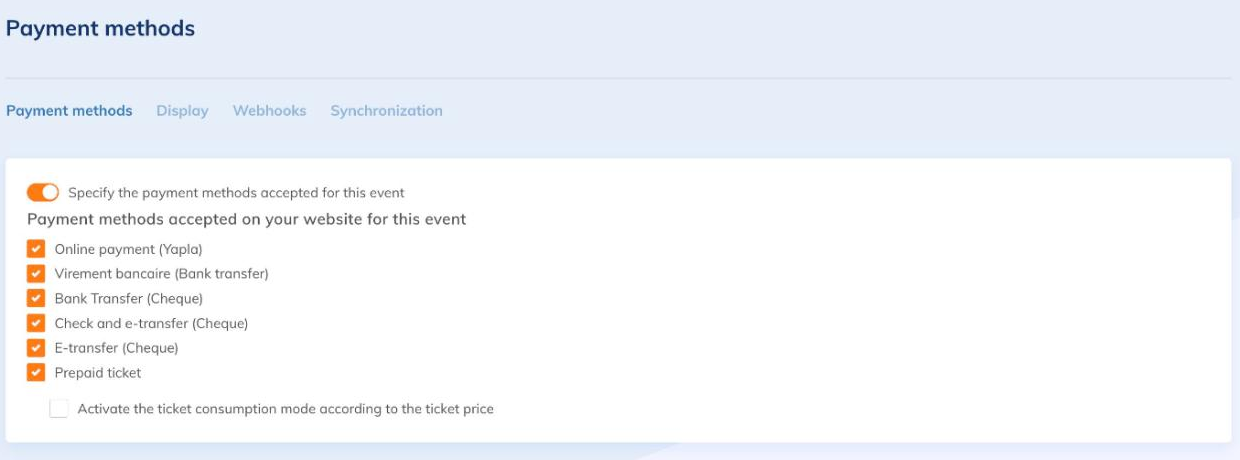
- Turn on Specify the payment methods accepted for this event.
- Check Prepaid ticket, along with the other accepted payment methods.
- Choose the consumption mode with the Activate the ticket consumption mode according to the ticket price box:
- Box unchecked (by number of tickets): one ticket covers one registration, whatever its price. $0 tickets work in this mode.
- Box checked (according to price): the value of the tickets is used to calculate the payment. $0 tickets are not counted in this mode.
- Click Save.
Tickets can be used only for prices that accept them. For each price concerned:
- Go to Events > Events, open the event, then click the Prices tile.
- Open the price, then check Authorize the use of tickets for the payment of this price.
- Click Save.
A price that generates a donation cannot be paid with tickets. In the price form, in the Donations and tax receipts section, leave the Automatically generate a donation box unchecked. Tickets are not offered either for a registration that includes an option, for example a mandatory option of the price.
Pay for a registration with tickets
The logged-in member fills in their registration form as for any other event. At the Summary step, a message shows the number of prepaid tickets they can use at payment.
At the top of the payment page, the Prepaid tickets section asks whether they want to use their tickets for this registration:
- Yes (default choice): the amount paid with tickets is deducted from the total to pay.
- No: the member pays for the registration with another payment method.
If the tickets do not cover the full amount, the member pays the balance with another payment method.

The Prepaid tickets section appears only when all these conditions are met:
- the member is logged in and has tickets left;
- the event accepts Prepaid ticket and the price authorizes their use (see Accept tickets for an event);
- the price does not automatically generate a donation;
- the registration includes no option.
Members can check their remaining tickets in their member area, under My memberships, on the Prepaid tickets line. The icon next to the number shows the details of each book.
Manage a member's tickets
- Go to Members > Memberships, open the member's membership, then click the Tickets tile.
- Click a book to display the details of its tickets and their usage history.
- To change the number of remaining tickets, click Adjustment, then enter the number of tickets to add or remove.