
The Members > Members page displays the list of your members. Its search tools let you find a specific member or filter the list based on your criteria. The number of entries shown below the list is the number of members found.
In this article
- Choose the type of search
- Use the multiple search
- Example: find members in an age range
- Choose the advanced search criteria
- Choose the columns and sorting of the list
- Export the results
Choose the type of search
Three tabs appear above the list:
- Search: enter a word found in the member's information, such as their name or email, then click Search.
- Advanced search: fill in one or more predefined criteria (membership type, membership status, email, first name, last name, etc.). For dates, such as the registration date or the membership expiration date, enter a period using the between and and fields.
- Multiple search: build your search condition by condition, using any member, membership or organization field (see the next section).
Criteria add up: only members who meet all of them are displayed. Click Reset search to return to the full list.
By default, the list displays active, inactive and pending members. To see archived members, add the archived status to the Status criterion. See Member status for details on each status.
Use the multiple search
- Click the Multiple search tab.
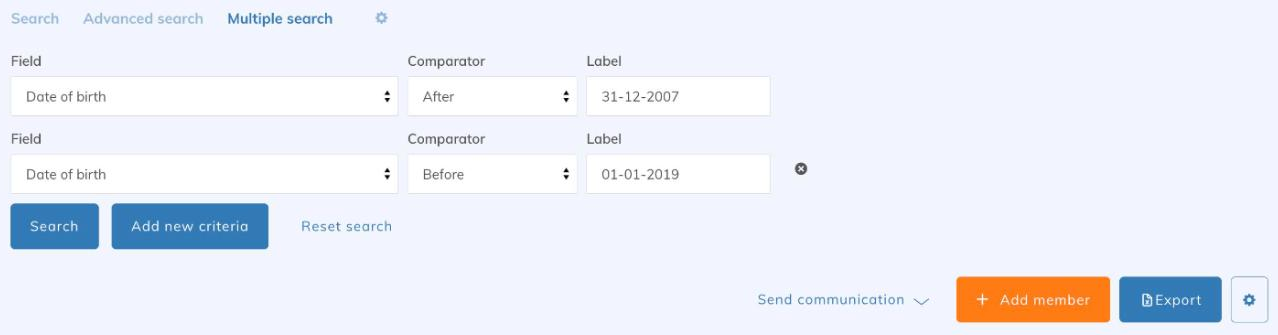
- In Field, choose the field to search. Fields are grouped under Organization, Member and Membership.
- In Comparator, choose the condition, then enter the value in Label. For a choice field, select the value from a list.
- To add a condition, click Add new criteria. To remove one, click the delete icon at the end of the line.
- Click Search.
Comparators by field type
| Field type | Available comparators |
|---|---|
| Text (e.g. Email, Last name) | Equals, Contains, Begins with, Different, Is not empty, Is empty |
| Date (e.g. date of birth, membership expiration date) | Equals, Before, After, Different from, Empty, Not empty, Last week, Next week, Last month, In less than a month, Last year, Next year |
| Choice from a list (e.g. Language, Membership Type, Membership status) | Equals, Different (Equals only for some fields, such as a checkbox) |
Relative comparators, such as In less than a month on the expiration date, are recalculated with each search: they work well for regular follow-ups, for example to spot memberships that are about to expire.
Example: find members in an age range
The multiple search lets you target an age range by combining two conditions on your date of birth field. To find members born between 2008 and 2018:
- In the Multiple search tab, choose your date of birth field, the After comparator and the date December 31, 2007.
- Click Add new criteria, choose the date of birth field again, the Before comparator and the date January 1, 2019.
- Click Search.
The number of entries below the list gives you the number of members in this age range.
The limits are set as dates: recalculate them with each search to target the same age range. To analyze the ages of your entire base, export the list and work with the file in a spreadsheet.
Choose the advanced search criteria
On the Members > Members page, click the gear icon to the right of the search tabs (Search settings). The Customize search criteria page opens:
- Select number of columns to display: choose how many criteria appear on a row (2, 3, 4 or 6).
- Select search criterias: drag a field from the FIELDS AVAILABLE column to FIELDS SELECTED to add it to the advanced search, or the other way to remove it. Move the fields within the FIELDS SELECTED column to change their order.
- Reset search criterias: return to a predefined list, Simple search (a few essential fields) or Advanced search (a wider choice).
Click Back to return to the member list.
Changes are saved automatically and apply to all users of your account.
Choose the columns and sorting of the list
For a one-time sort, click a column header in the list. To set the default columns and sorting:
- Click the gear icon to the right of Export (Search presentation).
- Under Sorting rule, choose up to 3 fields in Sort by and their Order of appearance: Ascendant or Descendant. The first field has priority.
- Under Select search result, drag fields between FIELDS AVAILABLE and FIELDS SELECTED. The field at the top of FIELDS SELECTED becomes the first column of the list.
- Click Save.
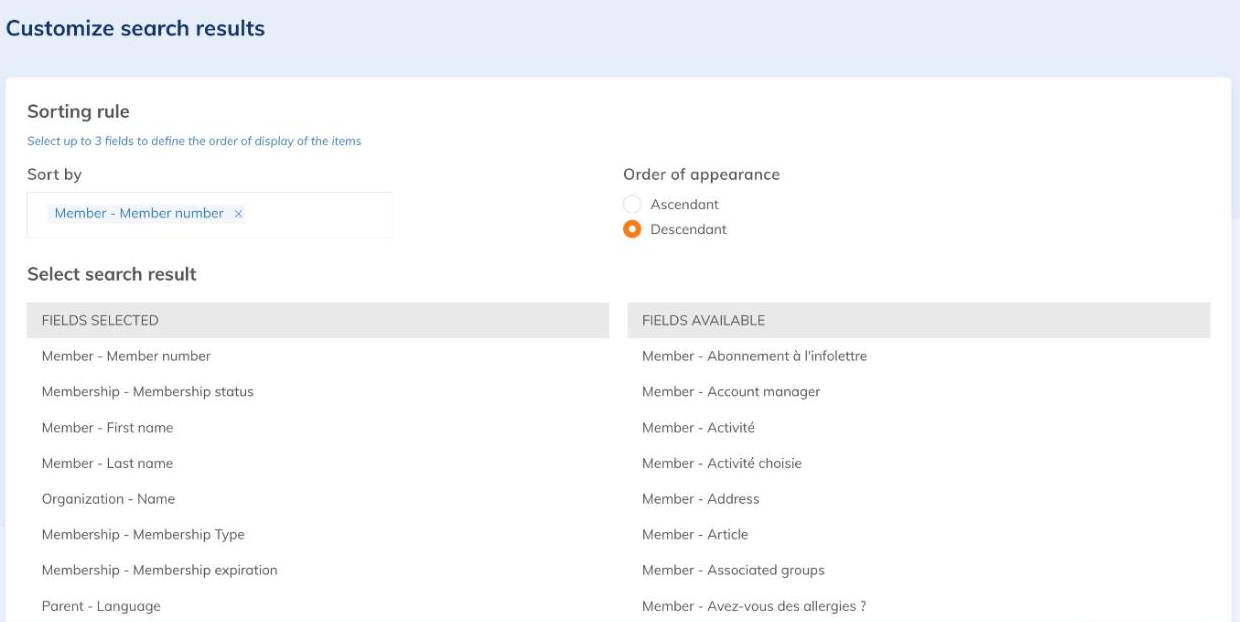
The list columns are also used by the Only the columns displayed on the screen export: choose them carefully to get a tailored file.
Export the results
- Run your search, then click Export.
- Choose the information to export:
- Only the columns displayed on the screen: the list columns, in their order.
- Export all member data: all fields, native and custom.
- Click Export. The file is then available under Members > Reports.