
Available from the Essential plan.
The members import wizard creates or updates several member records in a single operation, with their last membership if you wish. You can run it as many times as needed. Before you start, prepare your file (see Prepare your import file).
In this article
The wizard is located under Members > Settings > Import members, in the Wizards section.
1. Instructions
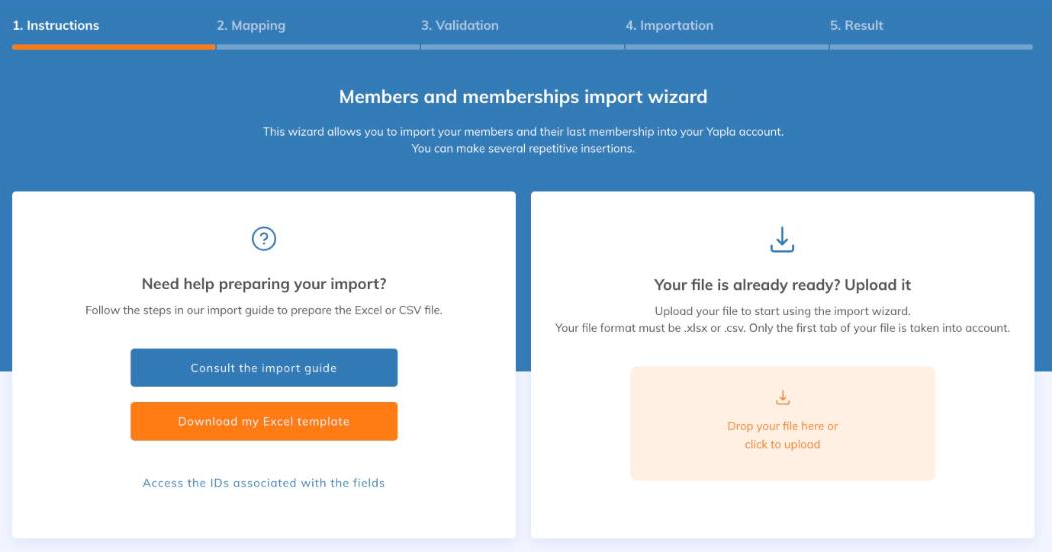
Drop your .xlsx or .csv file in the dedicated area, or click to select it. This step also offers the Excel template and the list of IDs associated with the fields.
2. Mapping
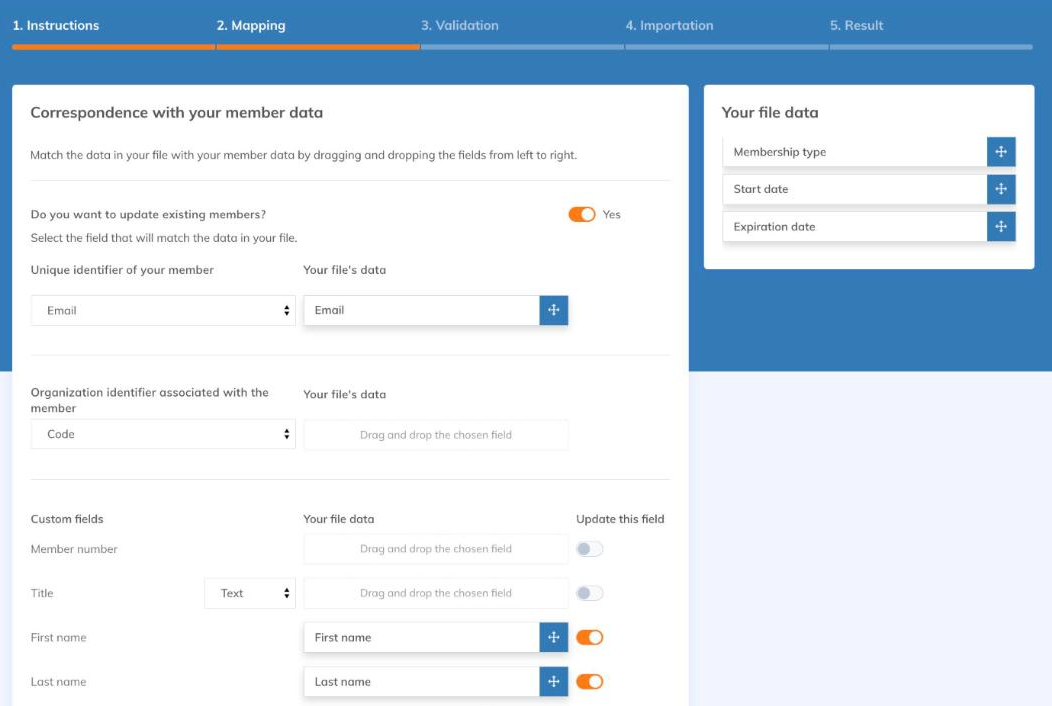
The columns of your file appear in the Your file data panel. Drag each column to the matching field.
Update existing members
The question Do you want to update existing members? is set to Yes by default. Then choose the Unique identifier of your member, for example Email or Member number. If a row in the file matches an existing member, their record is updated; otherwise, a new member is created.
For each field, the Update this field switch indicates whether the value in the file should replace the value already saved on the record. It turns on as soon as you match a column: turn it off to keep the existing information for that field.
An empty cell is always ignored, even if Update this field is on: the import cannot erase a value that is already saved. The value 0 is also considered empty. To remove information, edit the member's record directly.
Organization
If your organizations are already imported, match the column that contains the organization identifier with the Organization identifier associated with the member field, then choose the organization field used (number, name, etc.). If the organization exists, the member is added to it (see Import and update organizations).
Last membership
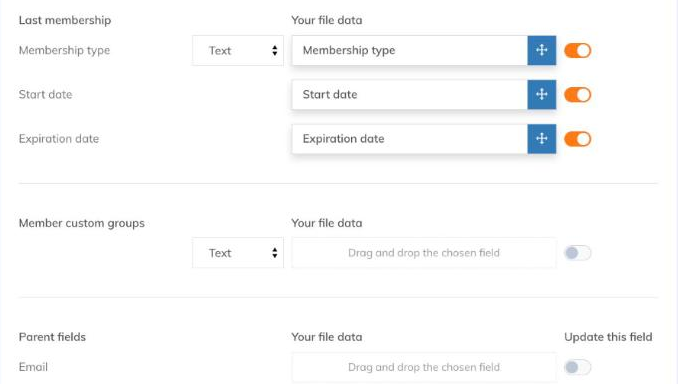
In the Last membership section, match the Membership type (as Text or ID), the Start date and the Expiration date. To import several memberships per member, use the membership history import instead (see Import membership history).
Custom groups
Available from the Plus plan.
Match the groups column with the Member custom groups field, as Text or ID. Separate several groups with a comma. The groups must exist before the import (see Create Custom Groups).
Parent
The Parent fields section appears when at least one membership type has the Request a parent's information for this membership type. option (see How do you associate a parent with a member?). It includes four fields: email, first name, last name and phone.
As soon as a parent column is filled in, the parent's email becomes required. Yapla looks for a contact with this email: it updates the contact if it exists, otherwise it creates it, then links it to the member.
3. Validation
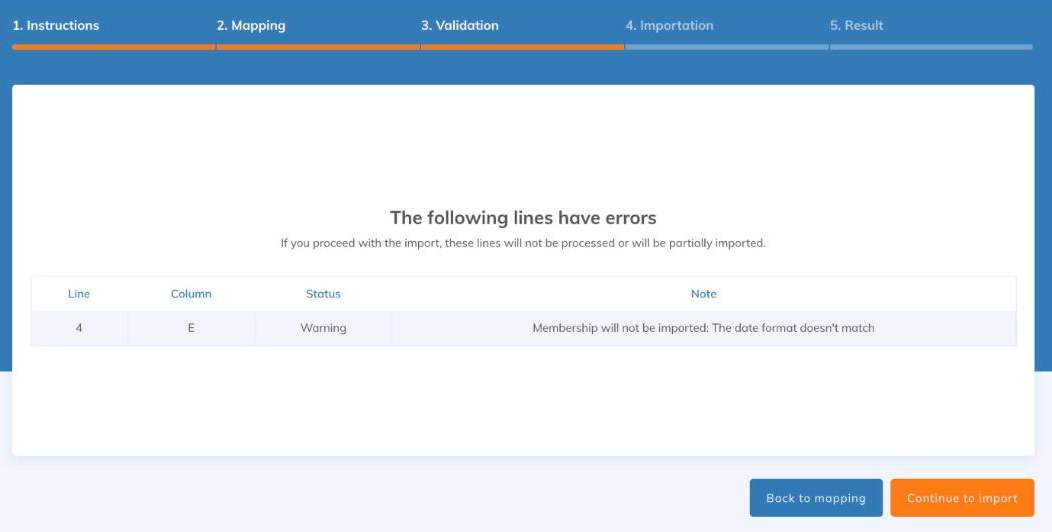
Click Validate mapping. The wizard checks each row of the file, which may take a few moments. If problems are detected, the The following lines have errors table shows the Line, Column, Status and a Note for each one.
- Error: the row will not be imported.
- Warning: the row is imported. For example, if the email is empty, a default email is generated and the member will not be able to receive communications.
To correct your file, click Back to mapping, then return to the Instructions step to drop the corrected file. If the problems are minor, you can continue.
4 and 5. Importation and result
Click Continue to import to start the import. For a large file, the import may take several minutes: leave the page open and work in another tab. An email notifies you when the import is complete, and the Result step shows a summary.
After the import
- Open a few records to check the imported data.
- An import cannot be cancelled from the interface. If an import does not give the expected result, contact support before running another import or editing the records.
- Do not archive members to correct an import: archiving does not delete records (see Archive, find and restore a member).