
Your organization's information (contact details, logo, language, time zone, social networks…) is used by several features: it appears on your website, on your invoices and in the communications sent to your members. Keep it up to date at all times.
In this article:
- Access your organization's information
- General information
- Add your logo, in one or more languages
- Language, date and currency
- Social networks
- GDPR, terms and conditions and domain
Access your organization's information
Go to Settings > Your organization. The information is split into tabs: Organization, Logo, Language, Date & Currency, GDPR, Social networks, Terms & Conditions and Diffusion domain.
In each tab, edit the fields you need, then click Save, at the bottom right of the page. You can change this information at any time.
General information
The Organization tab groups your organization's general information:
- Account number: your account identifier, assigned automatically.
- Organization Name and Acronym: the official name of your organization and the name it is known by (an acronym or short name, for example).
- Type of activity and Number of salaried employees: your organization's field of activity and size.
- Address, City, Postal code, Country, Province, Phone number: your organization's contact details.
- Email: your organization's email address.
- Website URL: the address of your website.
The Email field does not change the sender address of your communications. To change it, see Edit the sender's information of your automatic email communications.
Add your logo, in one or more languages
Your logo appears on your website, on your invoices and in the communications sent from your account.
- In Settings > Your organization, open the Logo tab.
- If a logo is already saved, click the X to the right of the image to remove it.
- Drop your file in the upload area or click Upload file. Accepted formats: JPG, PNG, GIF, BMP, TIF, SVG and WebP, with a maximum size of 5 MB.
- Crop the image if needed in the Edit image window (16:9, 4:3 or 1:1), then click Save.
- Click Save, at the bottom right of the page.
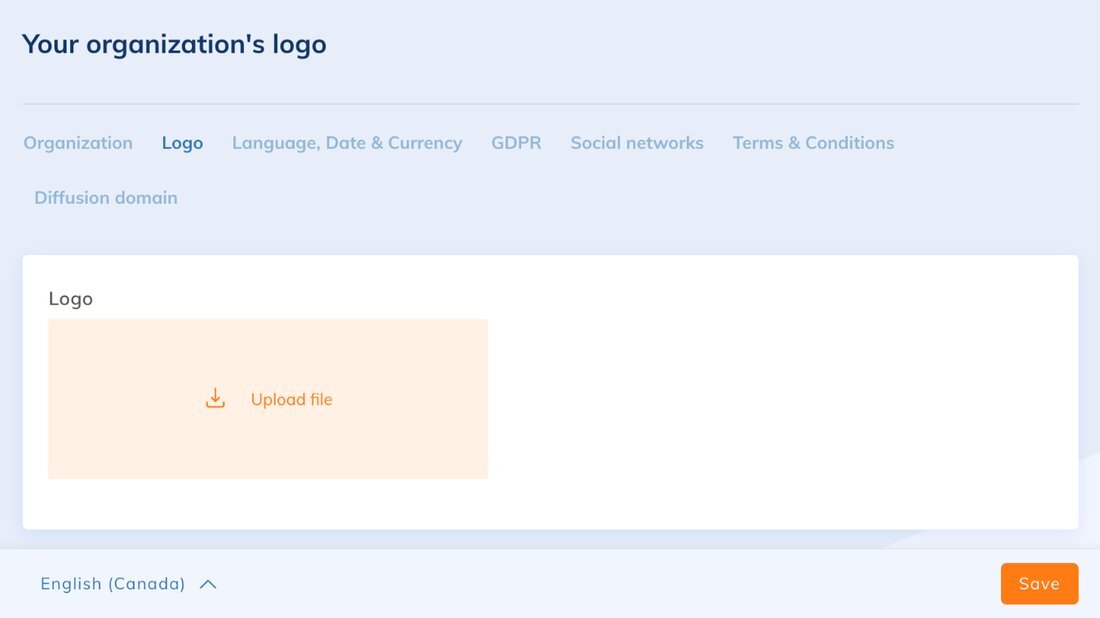
If your members use several languages, you can display a different version of your logo in each of them. Choose the language in the selector at the bottom left of the page, then add the file for that language.
For a consistent visual identity, use logos of the same dimensions in every language.
To add a language that is not in the selector, see Language management.
Language, date and currency
The Language, Date & Currency tab contains the following settings:
- Users default language: the interface language for new user accounts. Each user can then choose their own language. This language also sets the language of the Yapla invoices sent by email.
- Date format used by Yapla: the order of the day, month and year in displayed dates.
- Currency used by company: the currency of online payments. It is displayed for information only and cannot be changed in this screen.
- Time zone of your company: the time zone used for membership and registration periods, as well as for accounting.
- Latitude and Longitude: your organization's geographic position.
Social networks
In the Social networks tab, enter the address of your Facebook, X (formerly Twitter), LinkedIn, Vimeo, YouTube, Instagram and Pinterest pages. These links can then appear on your website.
GDPR, terms and conditions and domain
- GDPR: contact details of the person in charge of data collection (Collector In Charge) and of the Data Protection Officer (DPO).
- Terms & Conditions: the terms of use of your website and the display of cookie consent. See About the terms and conditions of your website.
- Diffusion domain: the domain name of your website. See Domain name and subdomain of your website.