
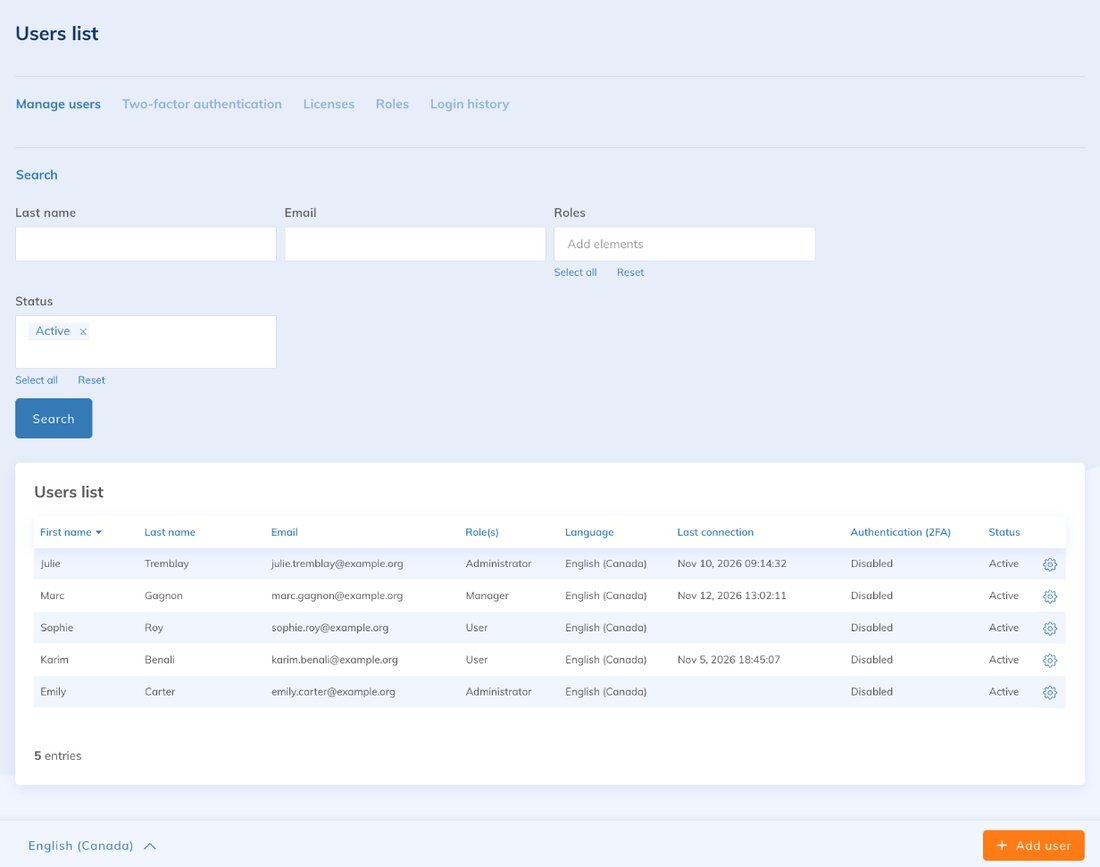
When a colleague leaves the organization or no longer needs access to the back office, deactivate their user. Users are managed under Settings > Users and licenses, in the Manage users tab.
In this article
Deactivate a user
In the users list, click the gear icon to the right of their name, then click Deactivate. Their status changes to Inactive.
Reactivate a user
By default, the list only shows active users.
- In the Status search field, add Inactive, then click Search.
- Click the gear icon to the right of the user's name, then click Activate.
Delete a user
Click the gear icon to the right of their name, then click Delete.
Choose deactivation if the person might rejoin the team: you can then give them access again in one click.