
As soon as you activate the Members, Events or Donations workflow, a payment web page is automatically enabled and you can receive payments. To have the money from online payments deposited into your bank account, you must first authenticate your electronic wallet.
In this article:
- Set up accepted payment methods
- Change the order and availability of payment methods
- Payment methods
- Advanced payment features
- Frequently asked questions
Set up accepted payment methods
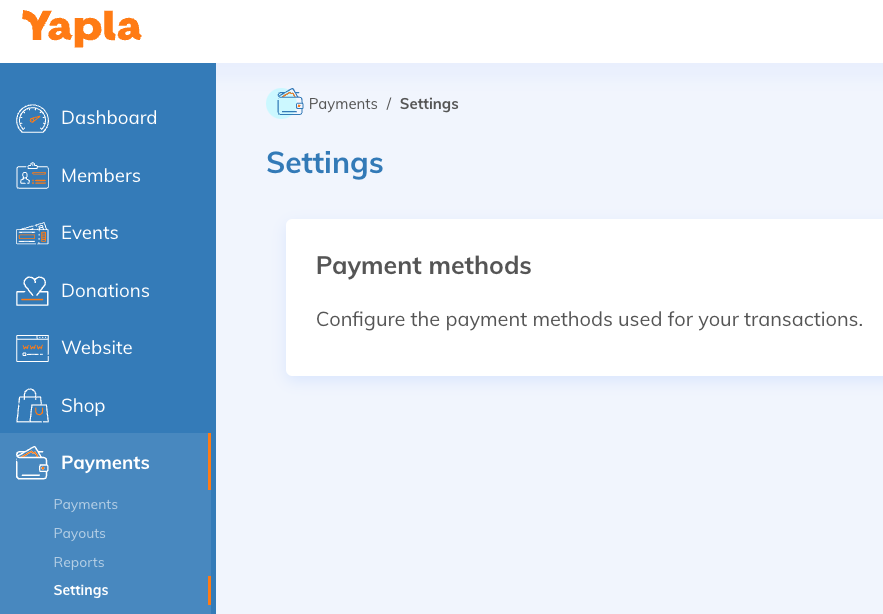
Go to Payments > Settings, then click the Payment methods tile.
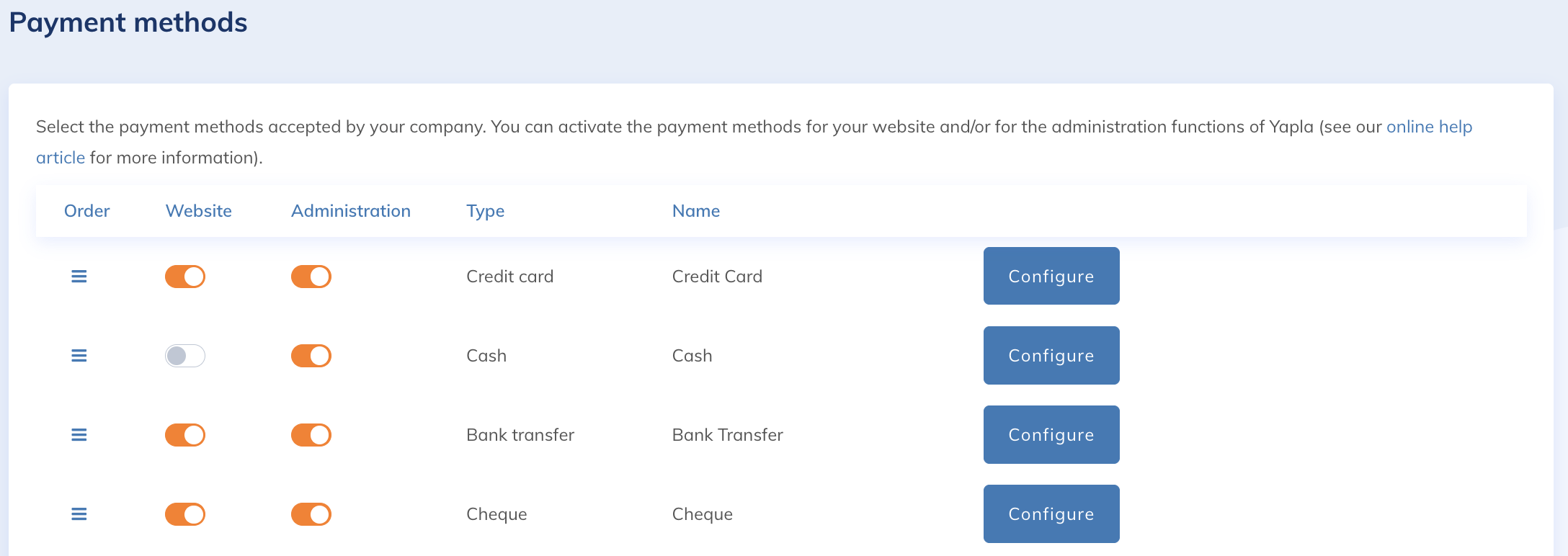
The list shows the payment methods included in your plan. Click Configure, next to a method, to adjust its settings.
The Credit card, Cheque, Cash and Bank transfer methods are all available with the Free plan.
Change the order and availability of payment methods
Three columns in the list control how payment methods are displayed:
- Order: sets the display order of payment methods on your website. The first method in the list is offered first.
- Website: offers or removes the payment method on your web pages, for your clients.
- Administration: offers or removes the payment method in the administration, for your account administrators.
Payment methods
Credit card (online payment), Apple Pay, Google Pay and indirect payments
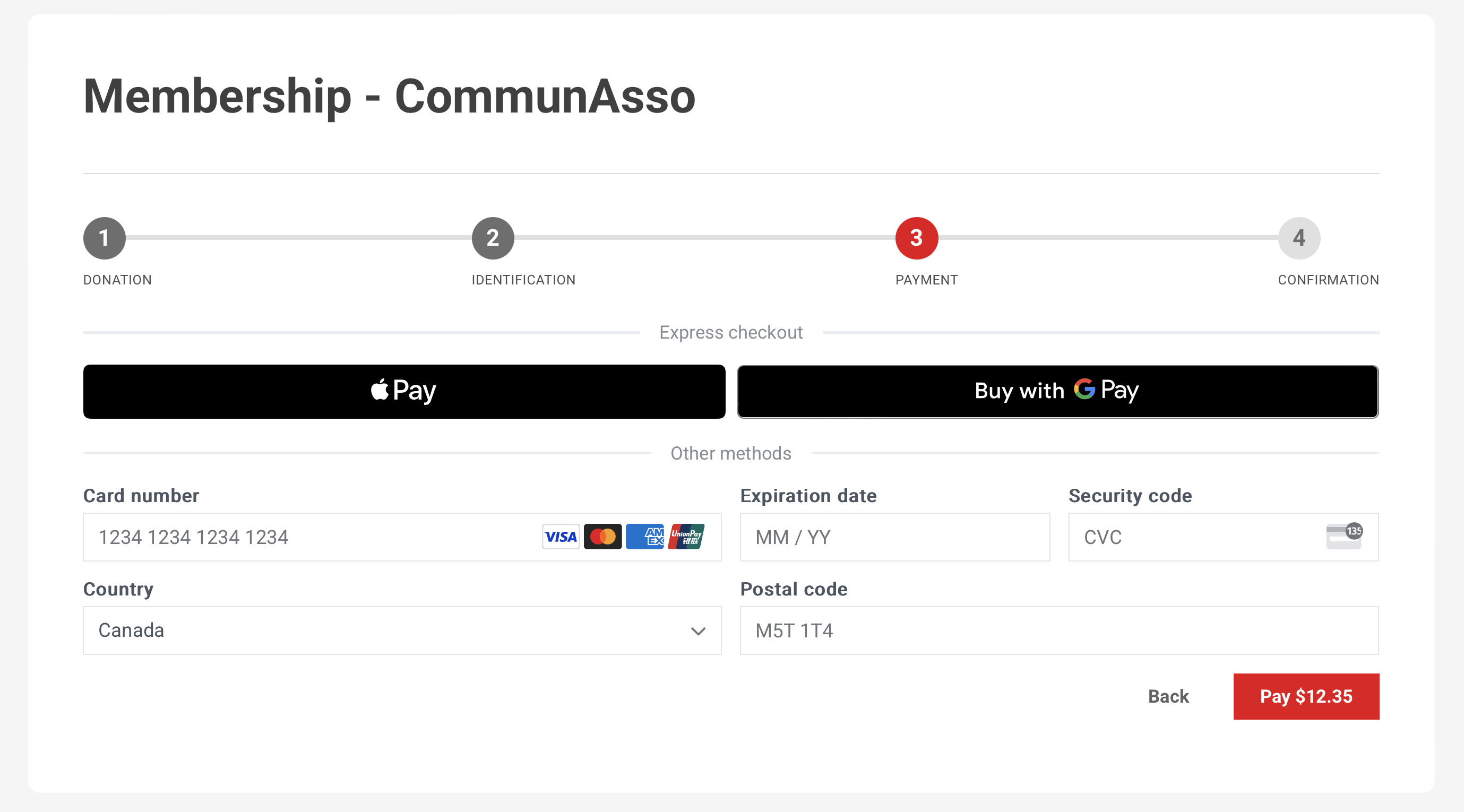
The Credit card method lets you receive payments by credit card, Google Pay, Apple Pay or indirect payment (pre-authorized debit). Once this method is configured, Apple Pay and Google Pay are offered automatically.
To pay by credit card, the client enters their card details. To pay with Google Pay or Apple Pay, they click the Google Pay or Apple Pay button, log into their account (with face recognition on a mobile device or with their password), then confirm the payment.
The Google Pay and Apple Pay buttons may vary depending on the browser used during payment. For example, Google Pay may not be offered in Safari. For Apple Pay, use Google Chrome or Safari.
Fees and maximum amount of a card transaction
In the Credit card method settings, the Yapla payment fees section offers two choices:
- Commission: a 3.9% + $0.30 fee is applied to each transaction you receive.
- Voluntary contribution (up to $500): you receive 100% of payments, and the buyer can leave an optional amount to support the platform.
In voluntary contribution mode, a card or indirect payment transaction is limited to $500. Above this amount, the Credit card method is no longer offered to the payer. To accept larger transactions, check Accept transactions above $500, then save: a 3.9% + $0.30 fee then applies to each transaction above $500.
Without this option, a payer cannot pay more than $500 by card. Check it, or offer a manual payment method such as bank transfer or cheque. To learn more, see Understanding voluntary contribution mode.
Indirect payments
The Indirect payments option lets the payer enter their banking information for automatic debits. These payments can take a few days to be confirmed.
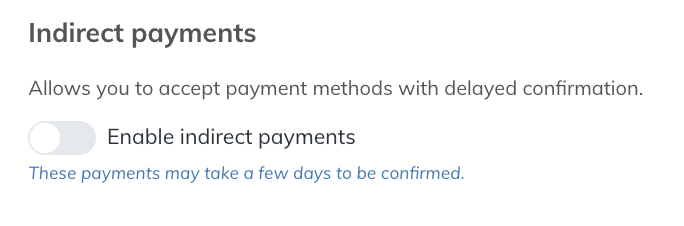
Indirect payments are only available for recurring donations. Their transaction and dispute fees are the same as for credit cards (see View my transaction fees).
Display on the website
Online payment methods appear on your website as follows:
Contactless payments through a payment terminal are not supported.
Bank transfer
With a bank transfer, the payer sends the money from their bank directly to your organization's bank account. The funds do not go through Yapla and no Yapla transaction fees apply.
Click Configure, next to the Bank transfer method, then fill in the Beneficiary account of the transfer section:
- Beneficiary's name: holder of the bank account that receives the transfers (required field).
- Payment instructions: banking details and instructions the payer must follow to make the transfer.
At the end of their order, the payer sees the beneficiary's name and your instructions on the confirmation page.
In the instructions, ask the payer to add a reference to their transfer description, such as "2026 membership fee" or the name of your event. Your treasurer can then easily find the payment on the bank statement and match it to the right registration.
The sale keeps the Pending payment status until the transfer reaches your account and you record the payment (see Pay an invoice with pending payment).
The Ask for a reference number option, checked by default, makes a reference number mandatory when you record a payment received by bank transfer. Uncheck it if you do not want to enter a number. This option does not create a reference for the payer.
Cheque
The client mails you their cheque. The sale keeps the Pending payment status until you receive the cheque and record the payment.
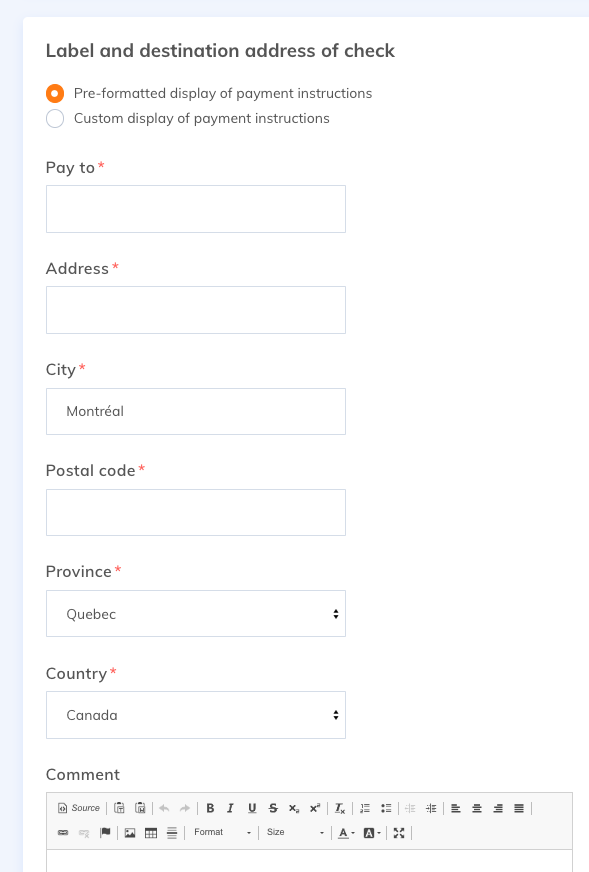
Click Configure, next to the Cheque method, to specify the instructions for sending the cheque. Use the default message, which includes your organization's name and address, or write your own instructions.
Cash
The client gives you the funds directly. The sale keeps the Pending payment status until you receive the funds and record the payment.
Payment simulator
Available starting with the Essentials plan.
The simulator lets you make test payments. Use it for testing only.
Advanced payment features
Depending on your plan, advanced payment features meet more specific needs.
Visibility of the payment method
Available starting with the Plus plan.
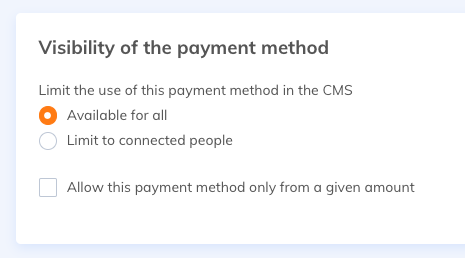
For payments made on your website, the Visibility of the payment method section restricts who is offered a payment method:
- Available for all: the method is offered to all payers.
- Limit to connected people: the method is offered only to people logged in to your site.
- Limit to associated groups: the method is offered only to a group of people, for example members with a specific membership type.
At the payment step, the system checks whether the person is logged in and offers the payment methods you configured for them.
Minimum amount for a payment method
The Allow this payment method only from a given amount option, in a method's settings, offers this method only for payments that reach the amount you enter.
Add a payment method
Available starting with the Premium plan.
The Add payment method button lets you create as many payment methods as you need. Organizations that manage several bank accounts for their activities use it, for example, to receive donations and training payments through different payment methods.
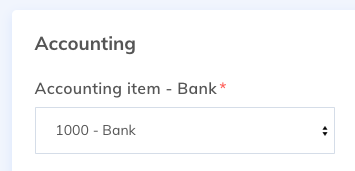
Associate the appropriate accounting item with each of your payment methods.
Frequently asked questions
Is it possible to offer instalment payments?
Yes, see How to offer instalments to your members.
Can I use an external platform to receive credit card payments?
No, online payments go only through the Yapla payment method.
Can I use PayPal to receive payments?
No, PayPal is not offered.
Why can't a payer pay more than $500 by card?
In voluntary contribution mode, card transactions are limited to $500 unless the Accept transactions above $500 option is checked. See Fees and maximum amount of a card transaction.