
Bookmarks replace the old quick actions on your dashboard. Save any page of the application directly from that page, then return to it in one click from your dashboard.
Each user of the account manages their own bookmarks, independently of other users.
In this article:
- Add a bookmark
- Find your bookmarks on the dashboard
- Check whether a page is already bookmarked
- Edit or delete a bookmark
- Good to know
Add a bookmark
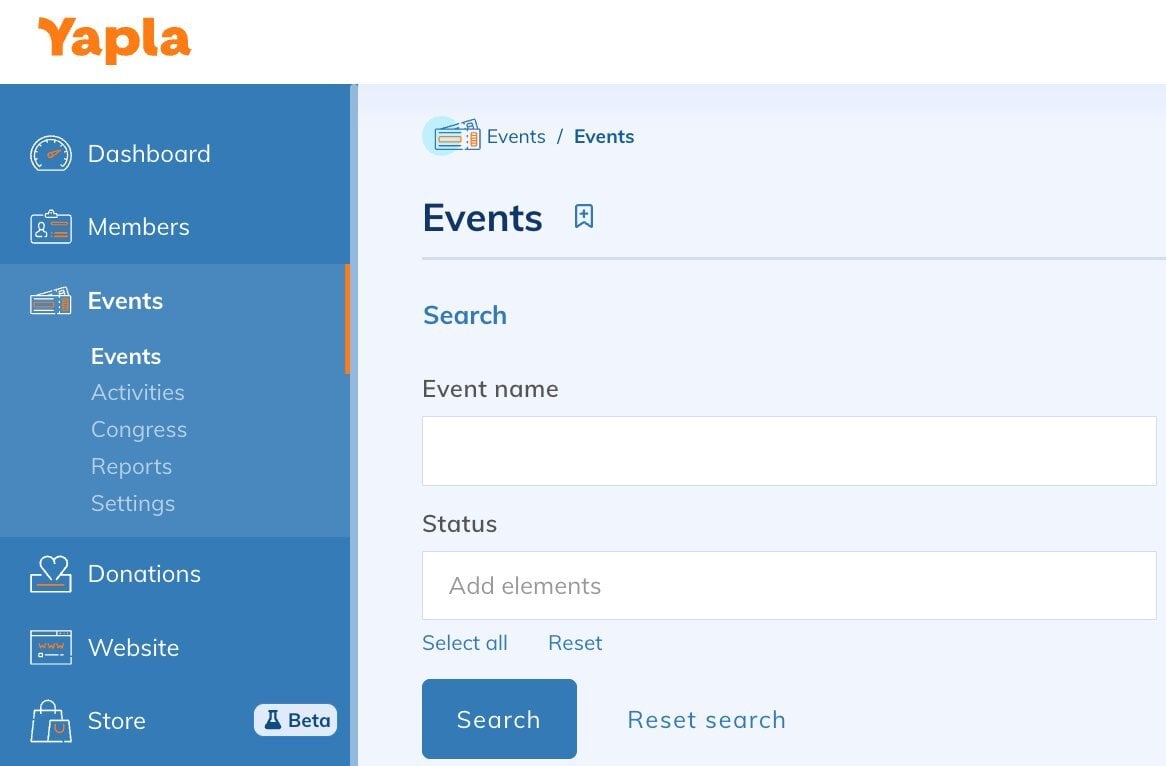
- Go to the page you want to save. A bookmark icon (🔖) appears next to the page title.
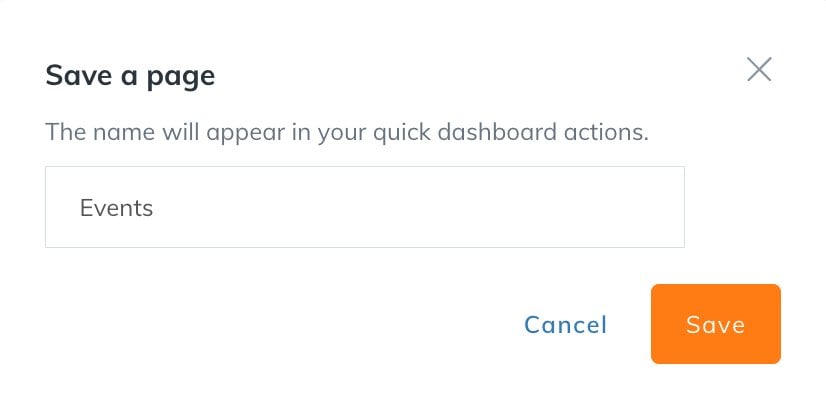
- Click this icon. A window opens and suggests a name for the bookmark (by default, the page name).
- Change the name if needed, then click Save.
Find your bookmarks on the dashboard
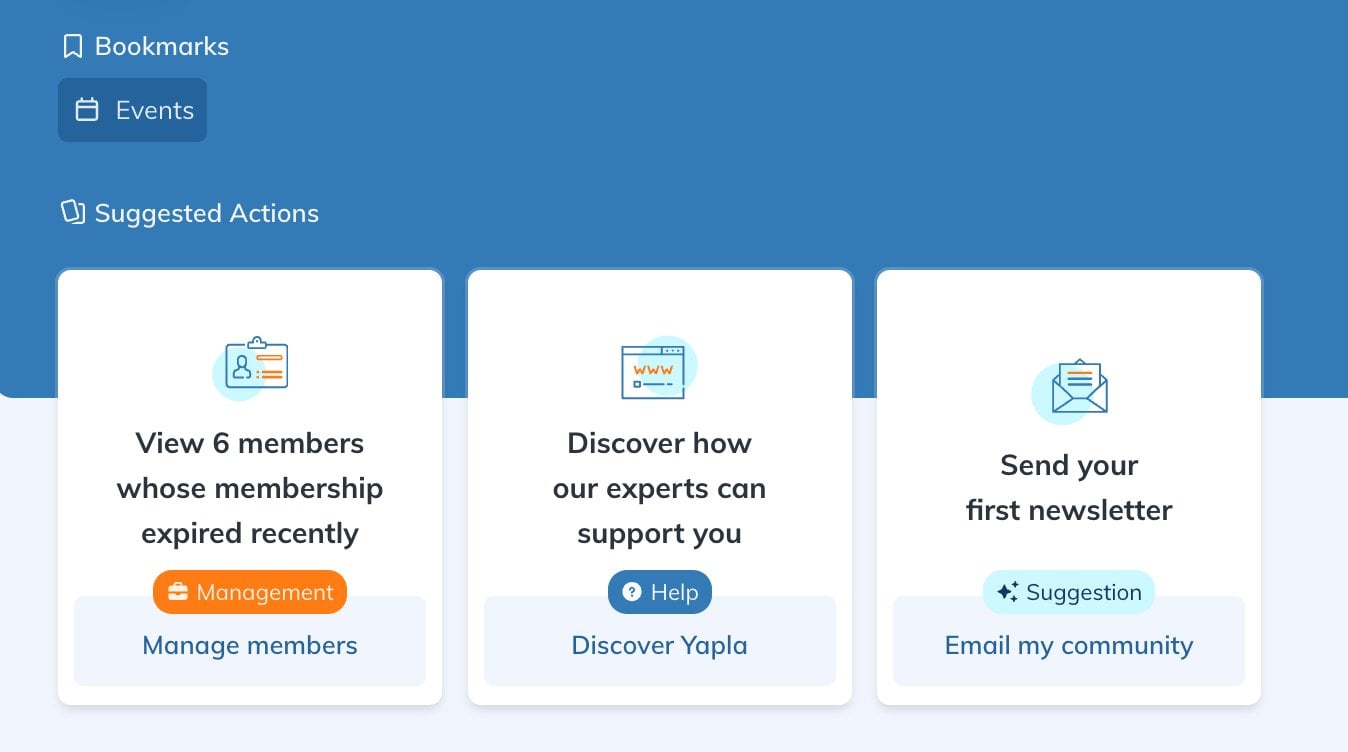
Once saved, your bookmark appears in the Bookmarks section at the top of your dashboard. Click it to go directly to that page.
Check whether a page is already bookmarked
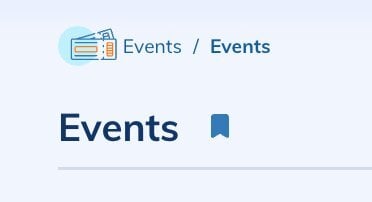
When a page is already in your bookmarks, the icon next to the title is filled in.
Edit or delete a bookmark
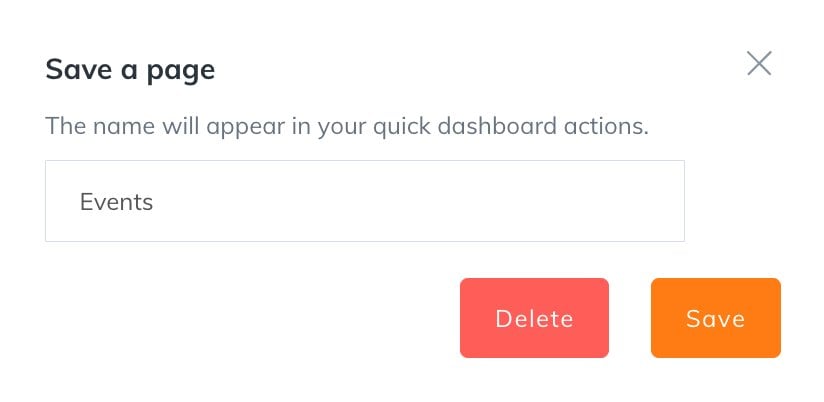
From the page in question, click the bookmark icon again. The window opens with two options:
- Save: renames the bookmark.
- Delete: removes the page from your bookmarks.
Good to know
- Personal: each user of the account has their own bookmarks, with no effect on other users.
- Any page: you can bookmark any page, for example a filtered list, a member record or a settings page.
- New dashboard: bookmarks appear on the new dashboard. If you do not see it yet, your account is being migrated gradually.
Keep a reasonable number of bookmarks so your dashboard stays easy to read.