
Manage all your organization's donations in your account, including those received outside your donation page or website: a cheque, a cash donation or a donation made by phone, for example. Once added to a campaign, the donation can generate a receipt if needed.
This article explains how to manually add a donation by creating a new donor or by adding it to an existing donor's profile.
In this article:
- Add a donation and create a new donor profile
- Add a donation to an existing donor's profile
- Add a recurring donation to a donor
Add a donation and create a new donor profile
-
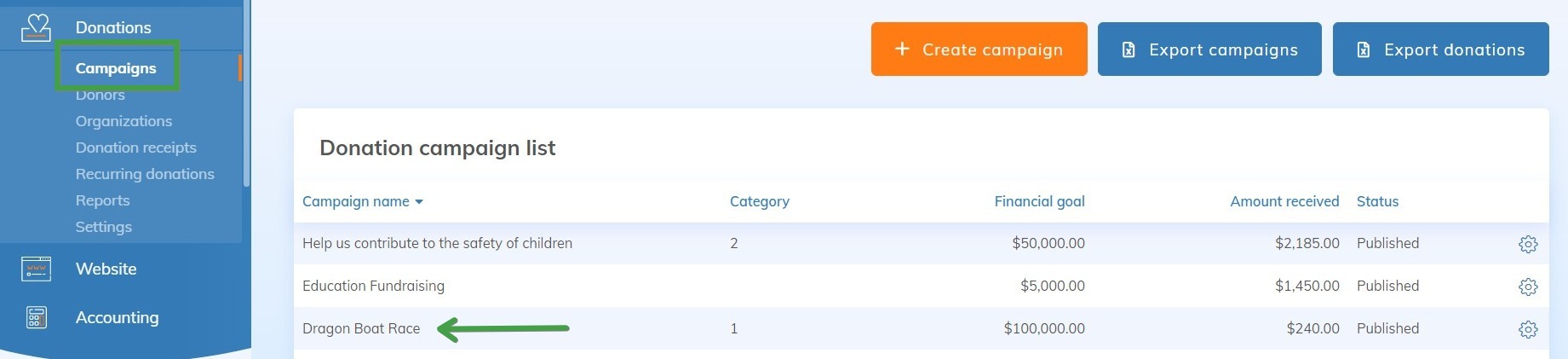
Under Donations > Campaigns, choose the campaign the donation belongs to.
-
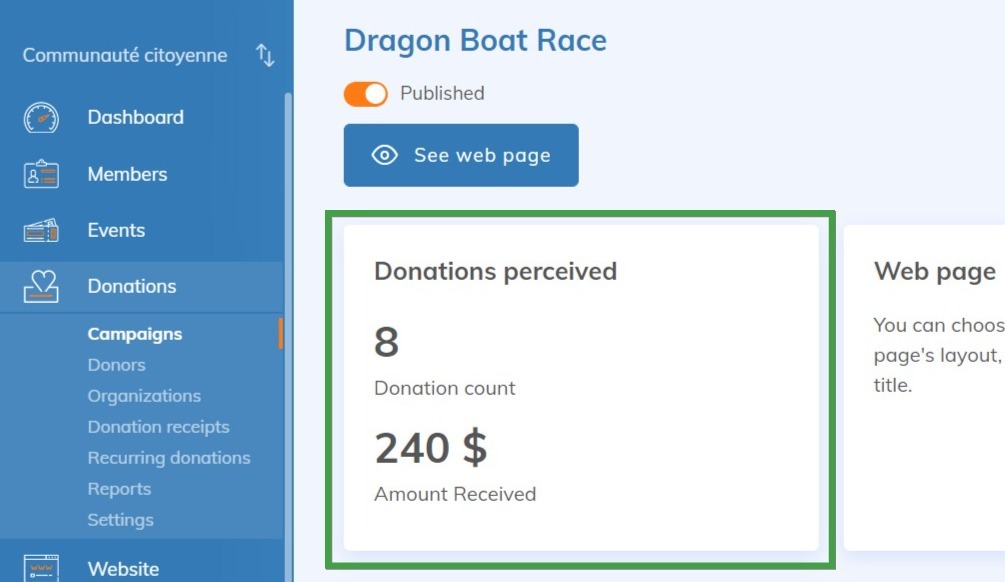
Click the Donations received tile.
-
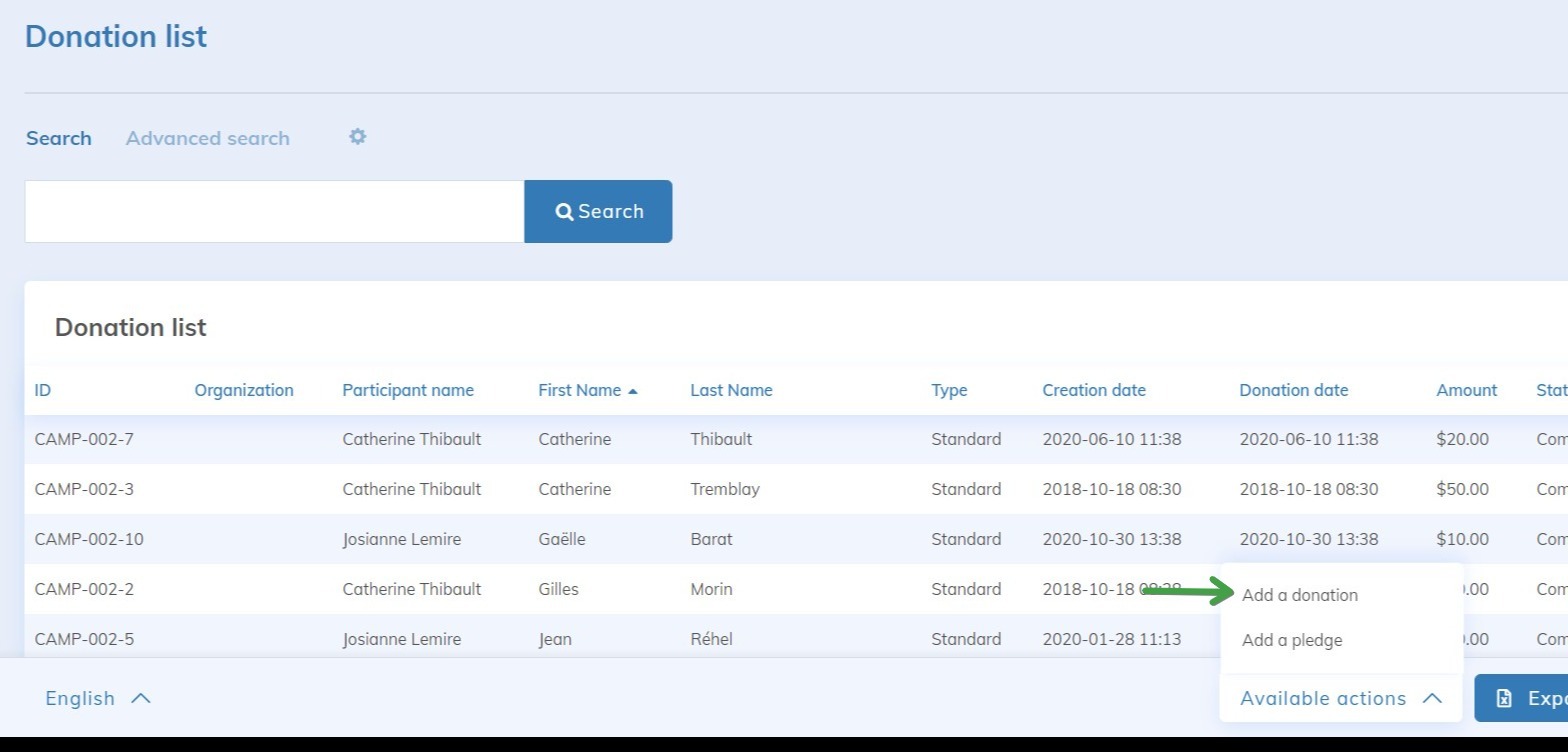
Click Available Actions, then Add a Donation.
-
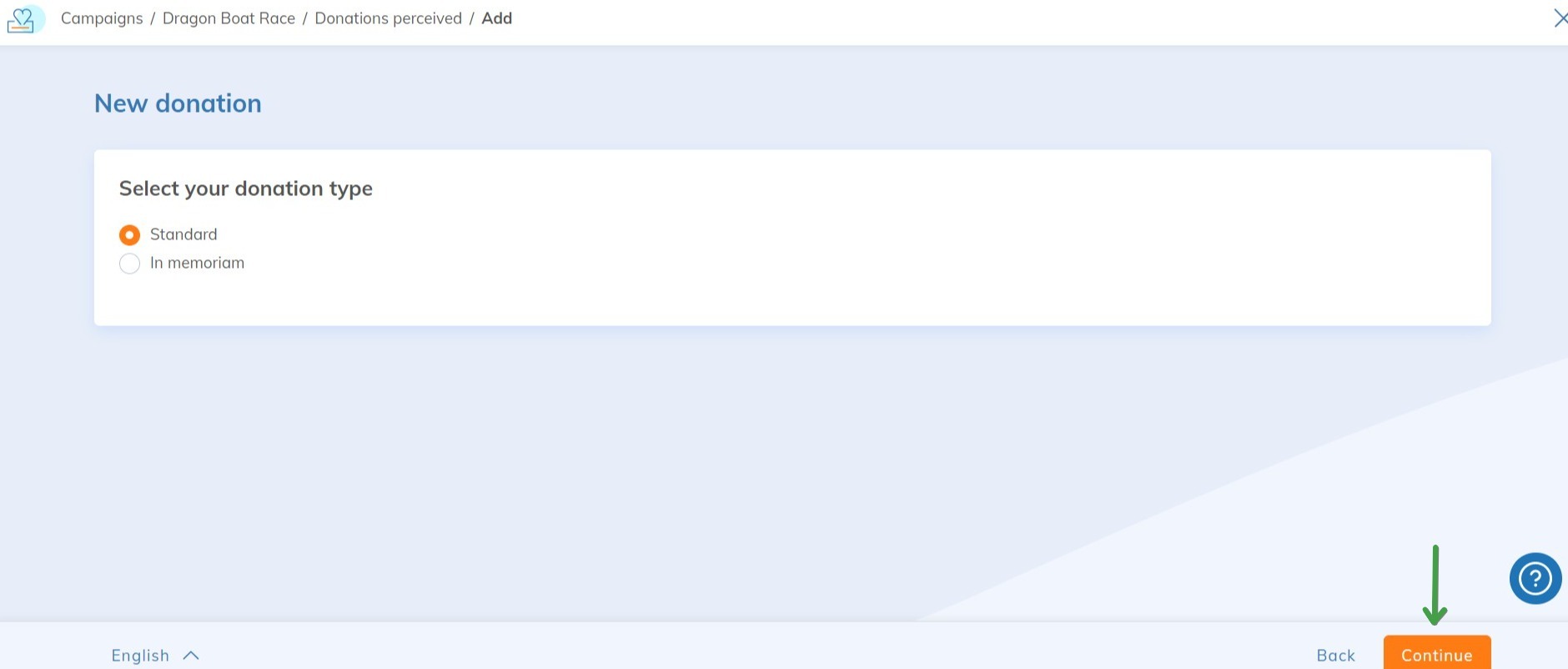
Choose the donation type, then continue.
-
Enter the donation information (date, amount, receipt type), then continue.
-
Enter the donor's information and contact details, then continue.
-
Check the payment summary and billing information.
-
Enter the payment method, then click Confirm the payment.
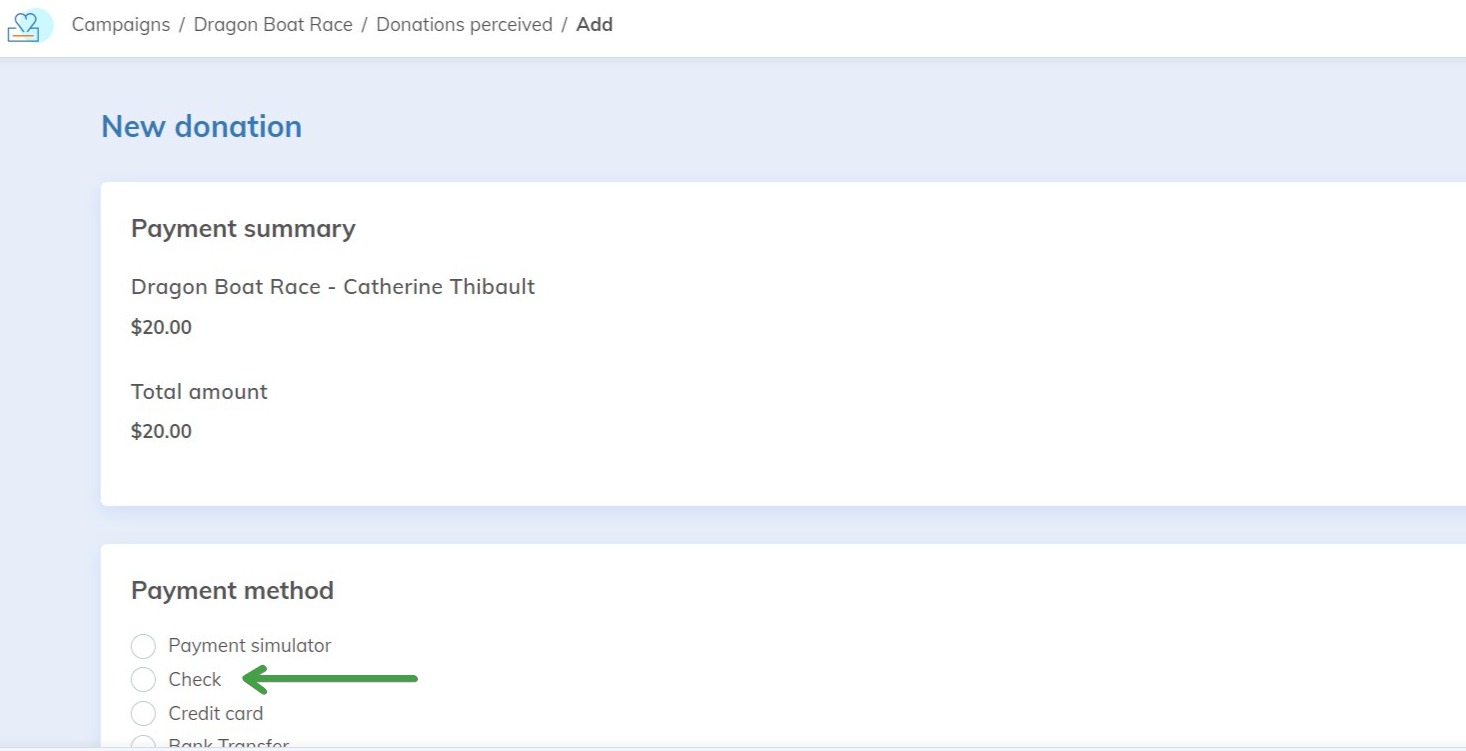
The donation is added to your campaign. Depending on the campaign's configuration, the donor may receive their donation receipt at the same time.
From a campaign, the add form only offers the suggested amounts of one-time donations. It does not offer a frequency and does not use the suggested amounts of recurring donations, so a campaign that only offers recurring donations displays no suggested amount. To add a recurring donation, see Add a recurring donation to a donor.
Add a donation to an existing donor's profile
To record a donation made outside the platform by an existing donor:
-
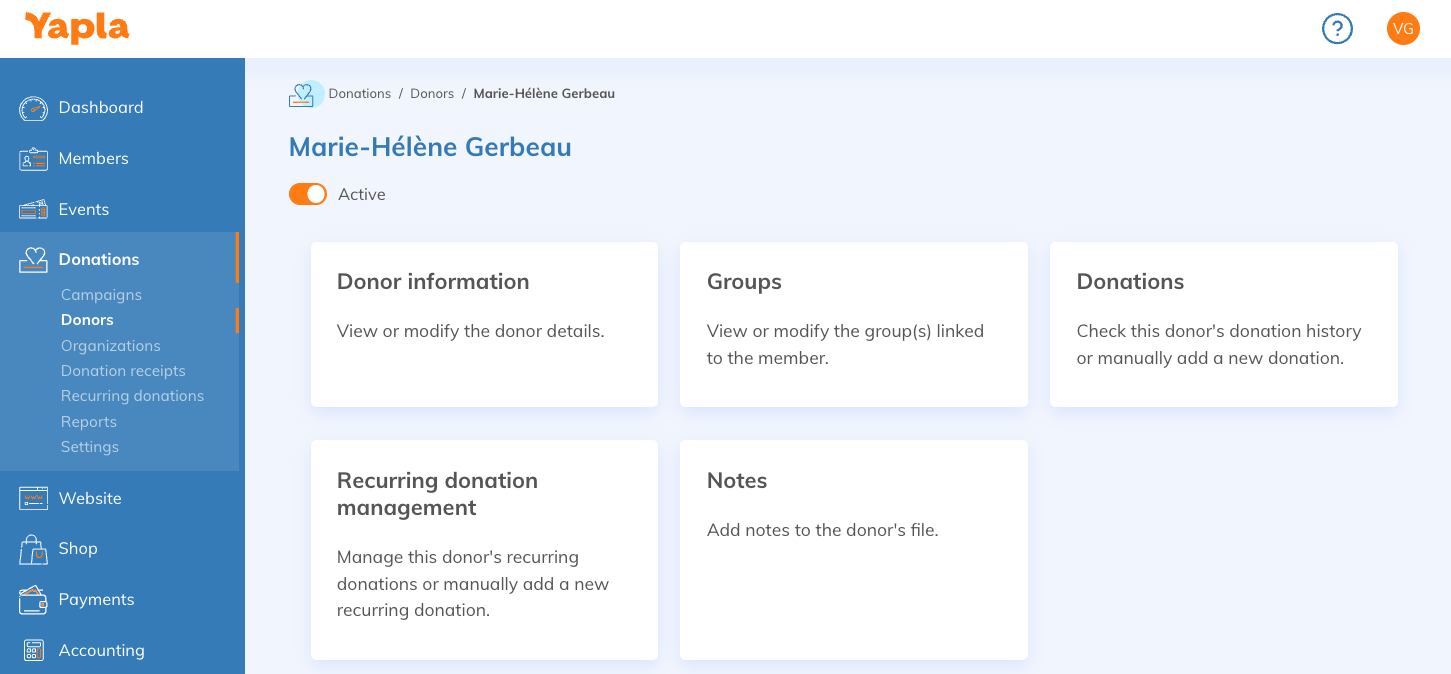
Under Donations > Donors, select the donor. In the side panel, click View detail.
-
Select the Donations tile to display the list of this person's donations.
-
At the bottom of the page, click + Add a donation, then follow the steps.
You can update the donor's information if needed. The donor receives a confirmation at the email address shown in their profile.
Add a recurring donation to a donor
- Under Donations > Donors, select the donor. In the side panel, click View detail.
- Select the Recurring donation management tile.
- Click Add a recurring donation, then follow the steps.
You enter the amount freely: no suggested amount is offered at this step. To check how the suggested amounts of recurring donations are displayed, use the donation form on your website instead.