
Payouts to your bank account are made twice a month: on the 15th and on the last day of the month.
Depending on your financial institution, payouts appear in your bank account two to three business days later. On your bank statements, they appear as Direct Deposit/ YAPLA or Direct Deposit/ STRIPE.
View your payout history under Payments > Payouts. Select a payout to see all the payments it includes, their commissions, if any, and the refunds deducted.
A payout can have one of the following statuses:
- Paid: the payout was completed and the funds were sent to the bank account.
- Pending: the payout is being processed. The funds are in transit to your bank account (usually within 2 to 3 business days).
- Error: the payout could not be completed. Check your bank details or contact support if needed.
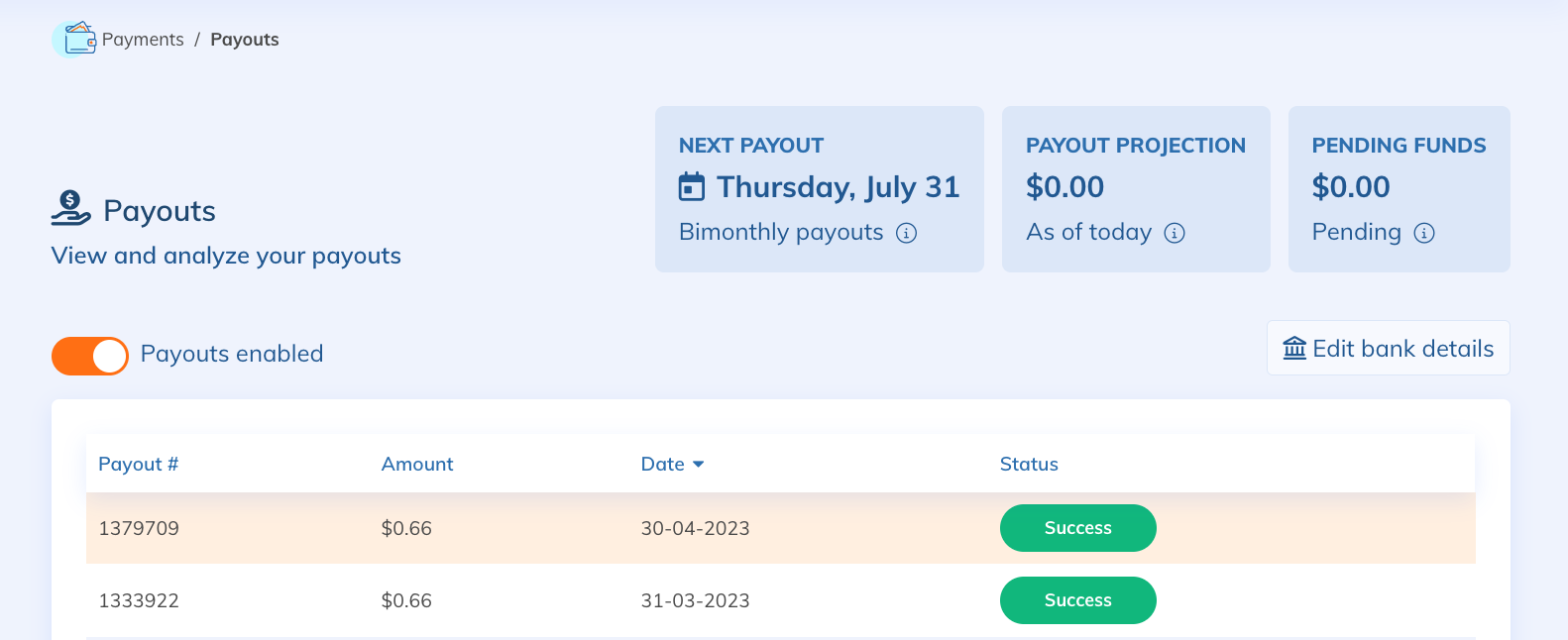
Starting with the Essential plan, you can enable or disable payouts as needed, for example to keep enough funds available for potential refunds or to comply with business rules.
Balances and pending funds
Payout details show two types of balances: the total balance (shown on the dashboard) and the available balance (shown under Payments > Payouts). Only the available balance is paid out, twice a month.
- Total balance: sum of all recorded transactions not yet paid out to your account.
- Available balance: transactions completed more than seven days ago, minus refunds. Each transaction is held for at least seven days before becoming eligible for payout.
- Pending funds: total of the transactions held during the seven-day period. This amount is added to the available balance at the end of the holding period.
Example
A transaction made on September 12 is not available for the September 15 payout, because it is less than seven days old. It becomes eligible on September 19 and is included in the September 30 payout. The delay is calculated as seven full days from the date and time of payment.
Refunds
A refund is immediately deducted from your balance and your available balance. If your refunds exceed your available balance, the payout is postponed to the next period with an available balance.
Download payout details
The payout detail page lets you download a file listing all the transactions included in the payout. For each payment, the file includes the billing information (last name, first name, email and client organization) and the associated amounts (commission and purchase amount).
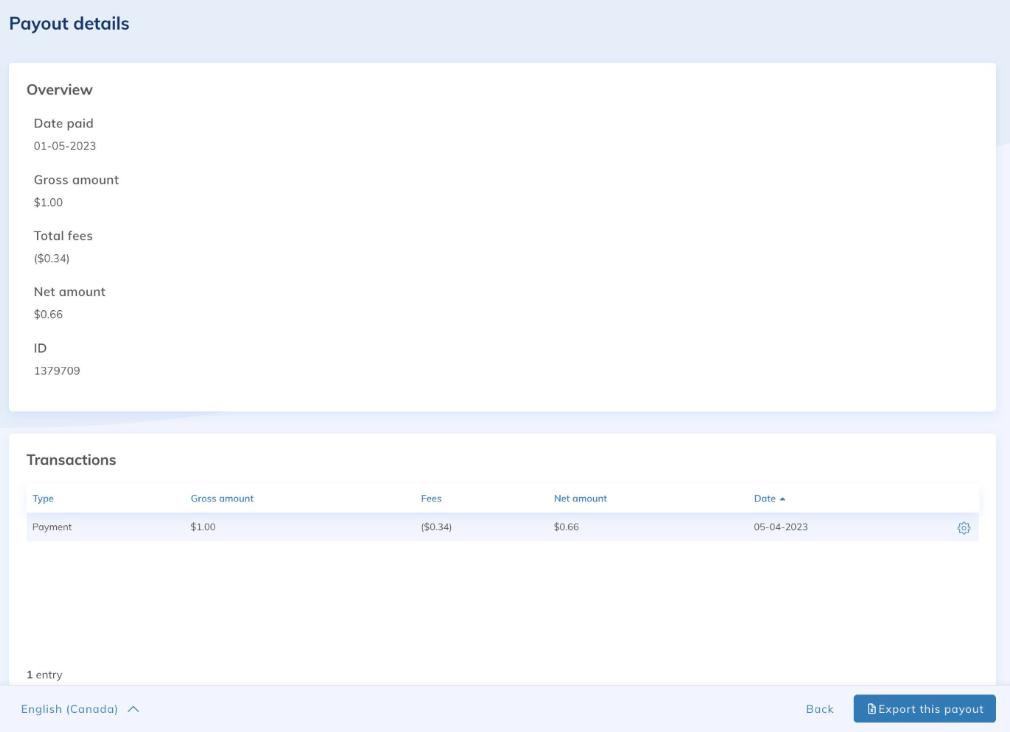
Click Export this payout at the bottom of the detail page. The file always contains the same columns:
- Payout number
- Payment number
- Invoice number
- Organization (billing organization)
- Last name and first name
- Gross amount, commission and net amount
- Date (payment date, not payout date)
This list of columns cannot be changed. A payout export does not include the campaign, the group or the donation's custom fields.
See the list of available reports for the Accounting feature.
Find the donations included in a payout
Match the payout export with the donations export using the invoice number, which appears in both files:
- Under Payments > Payouts, open the payout, then click Export this payout.
- Under Donations > Campaigns, open the campaign, then the Donations received tab. Click Export, choose Export all donation data, then click Export.
- Match the lines of both files by their invoice number.
FAQ
What are the possible reasons why my balance hasn't been transferred to my bank account?
Several reasons can explain why no payout was made to your account:
- Your electronic wallet authentication is not complete. Your identification file must be validated before payouts are authorized. Make sure all required documents have been provided and validated. See Authenticate your electronic wallet.
- A refund exceeds the balance eligible for payout. Even if you received payments, the refund or refunds absorbed all or part of the balance, which prevents the payout.