Some donors want to support your organization with monthly donations. Add the recurring donation option to your donation campaigns. The recurring payment can be set to the 1st or the 15th of each month.
Enable monthly donations
From the start of the campaign creation process, you can offer your donors the choice between a one-time donation, recurring donations or both.
If you haven't created a campaign yet
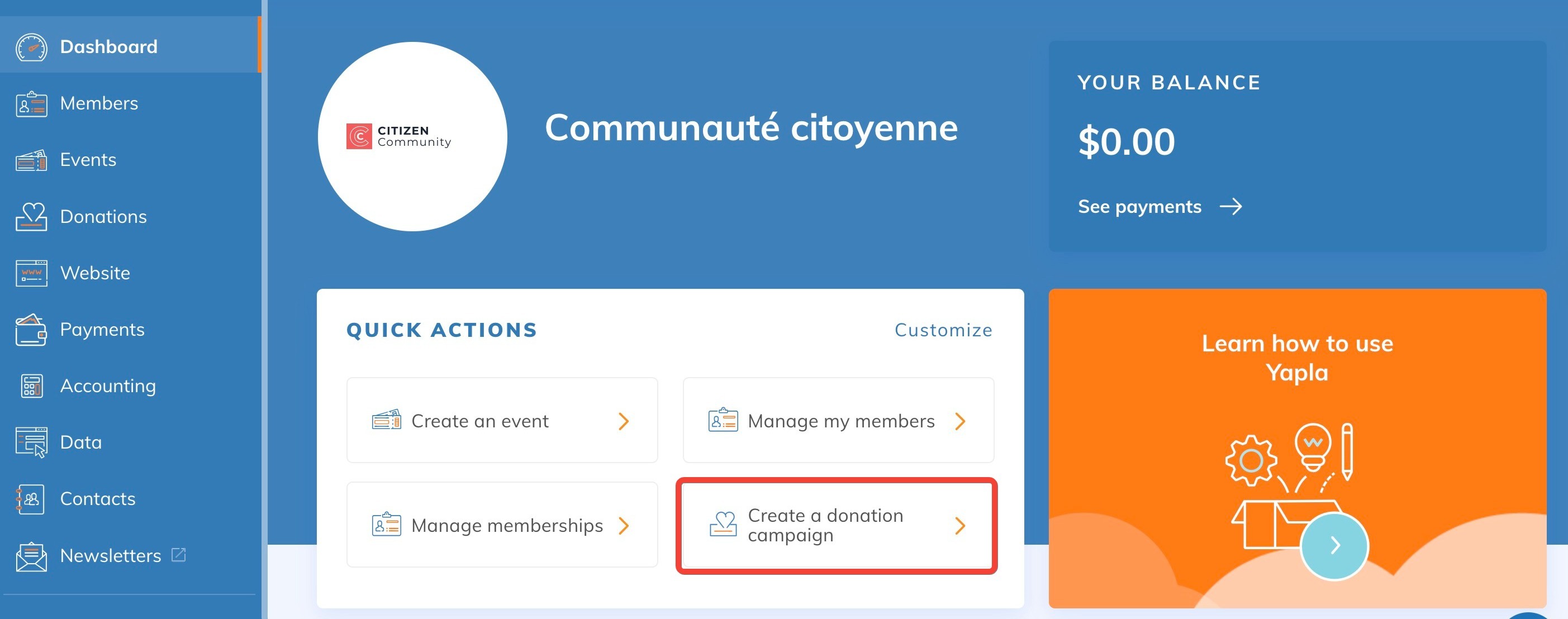
Your dashboard home page offers several quick actions. Select the Create a donation campaign tile.
Then enter the campaign information: its name, the fundraising goal and how the funds will be used. Once all fields are completed, click Next.
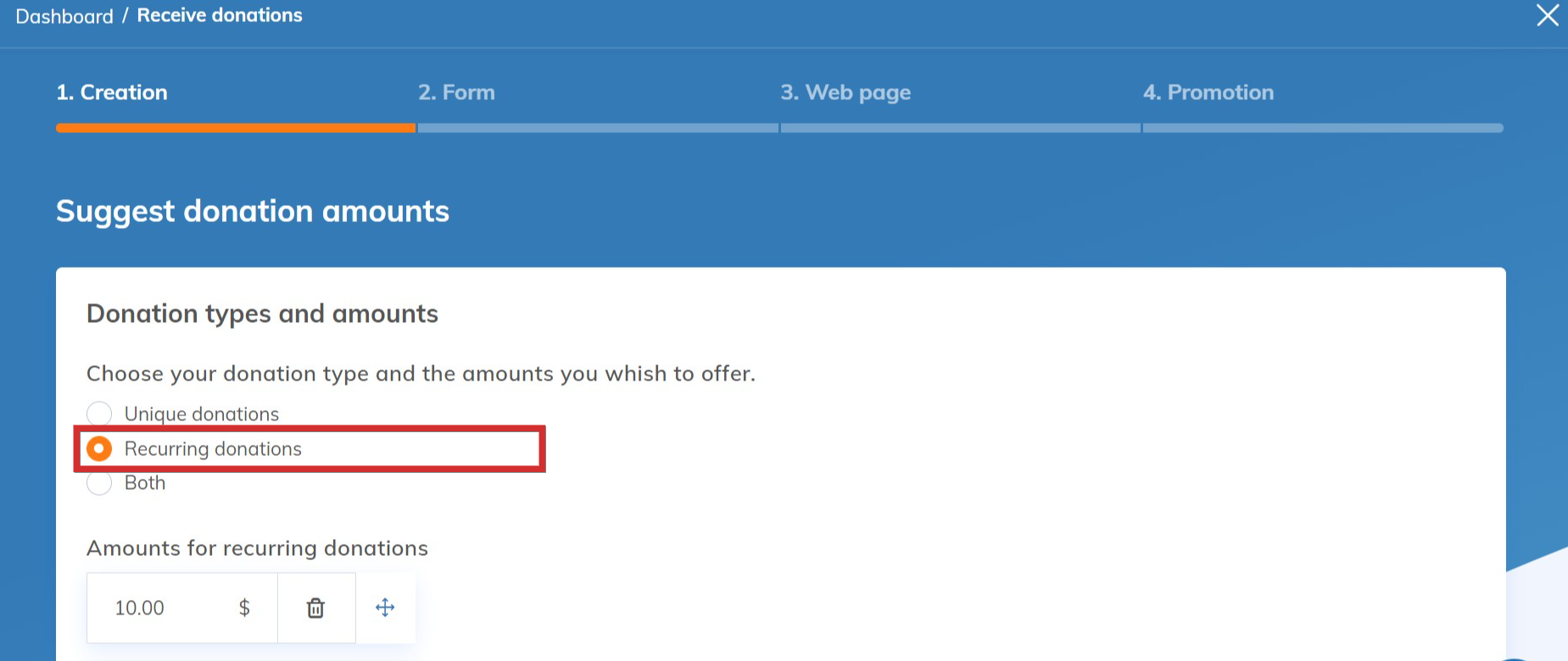
On this second page, select the Recurring Donations option.
Once the process is complete, you can change these choices at any time in your donation campaign settings.
To change the proposed amounts, open the campaign under Donations > Campaigns, then Configuration, Proposal of donations tab. The default amounts shown in "Amounts for recurring donations" are only saved once you click Save: save the page so these amounts are offered to your donors.
Manage recurring donations
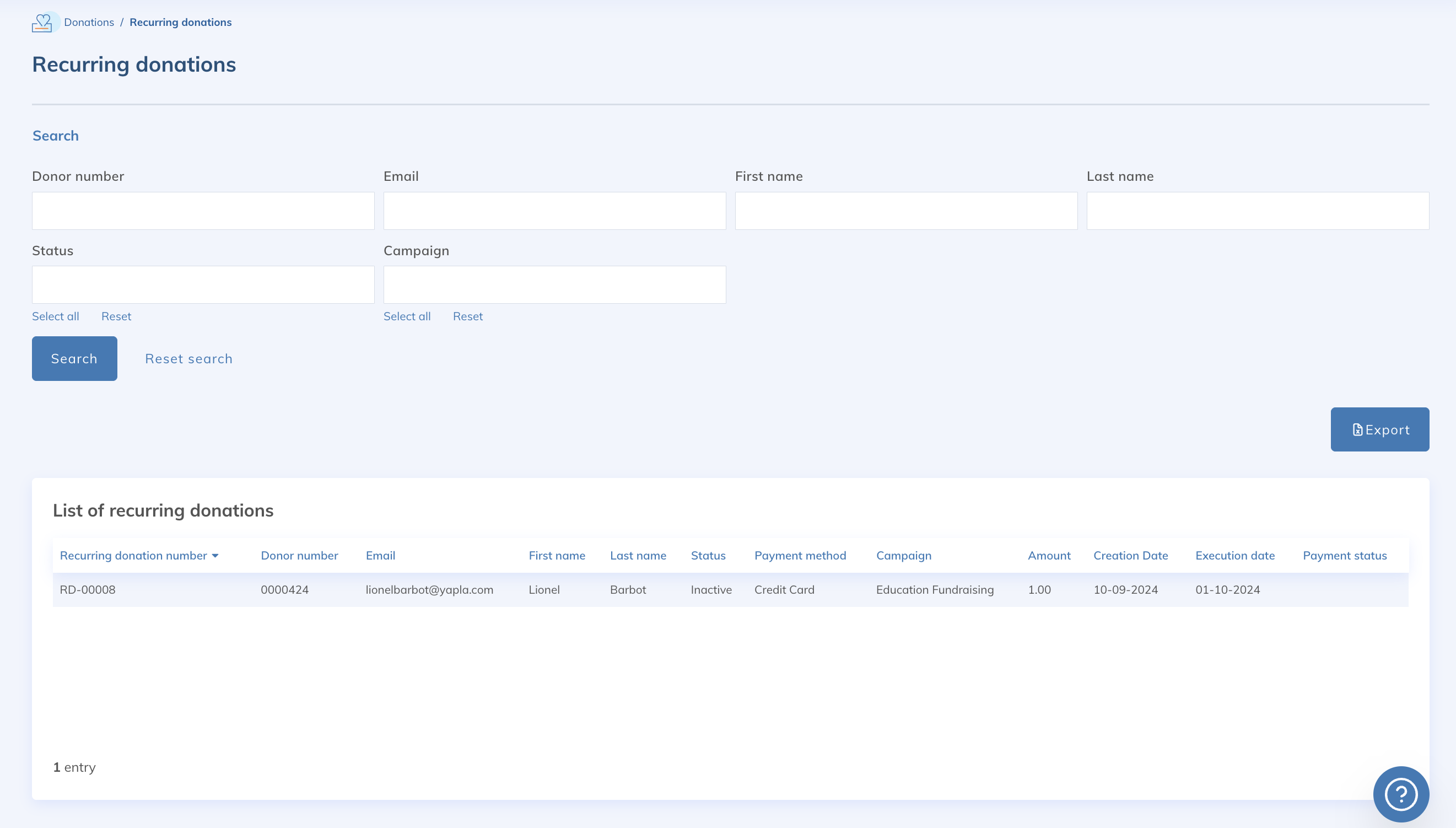
Under Donations > Recurring Donations, the list shows the donors who registered a recurring donation. Export it to get an Excel file. The following columns show the registration date, upcoming donations and payment status:
- Creation Date: date the recurring donation was registered.
- Execution Date: date of the last recurring donation payment.
- Payment Status: Success or Failure, depending on the status of the last payment.
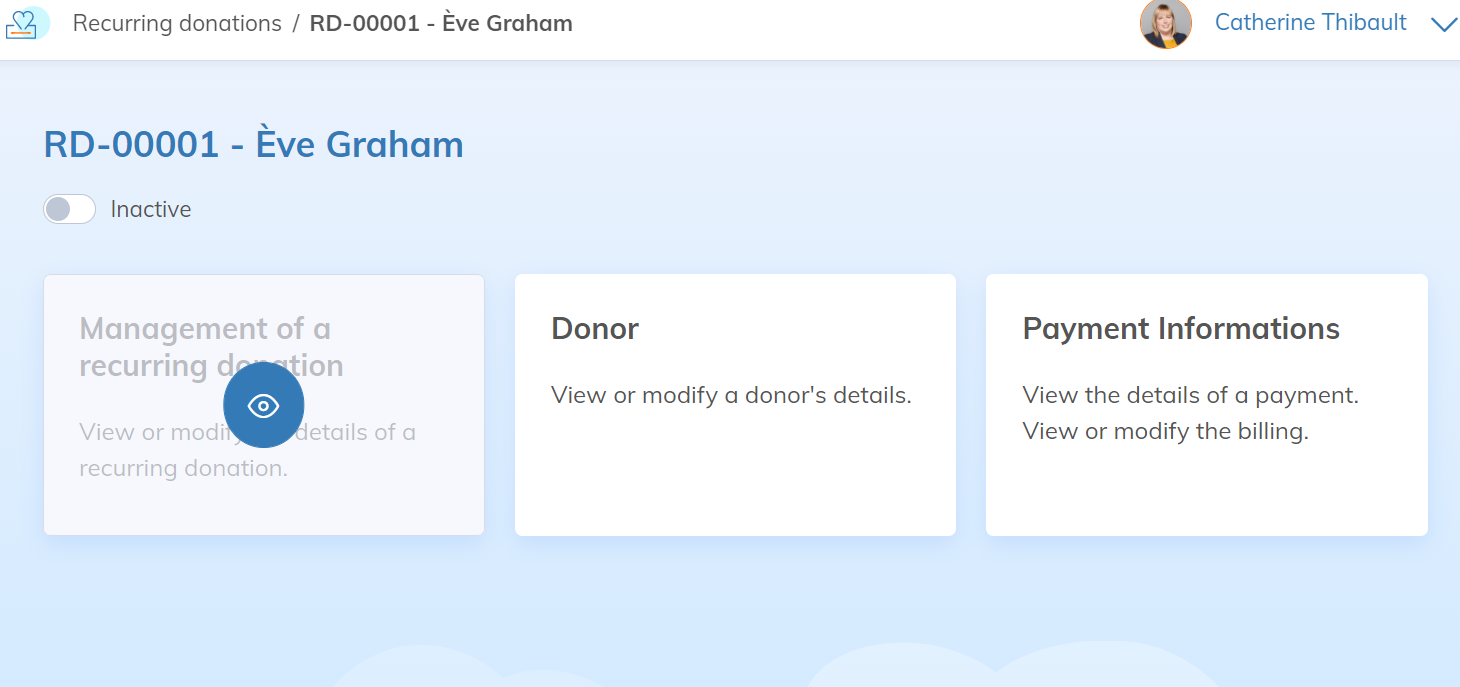
Select a donor to manage their recurring donations, their information and their payment information. You can update the billing information of a recurring donor (name, address, email, postal code, etc.), but not their payment card information. The donor can, however, make these changes themselves in their account, from the member area.