
When you offer registrations for an event, you set prices and can schedule promotional periods, such as an early bird discount to encourage people to register sooner. Each price also determines which options participants are offered and how they choose them.
In this article
- Create a price
- Restrict a price to certain participants
- Associate options with a price
- Link the price to registration periods
- Frequently asked questions
Create a price
Go to Events > your event > Prices, then click Add a price.
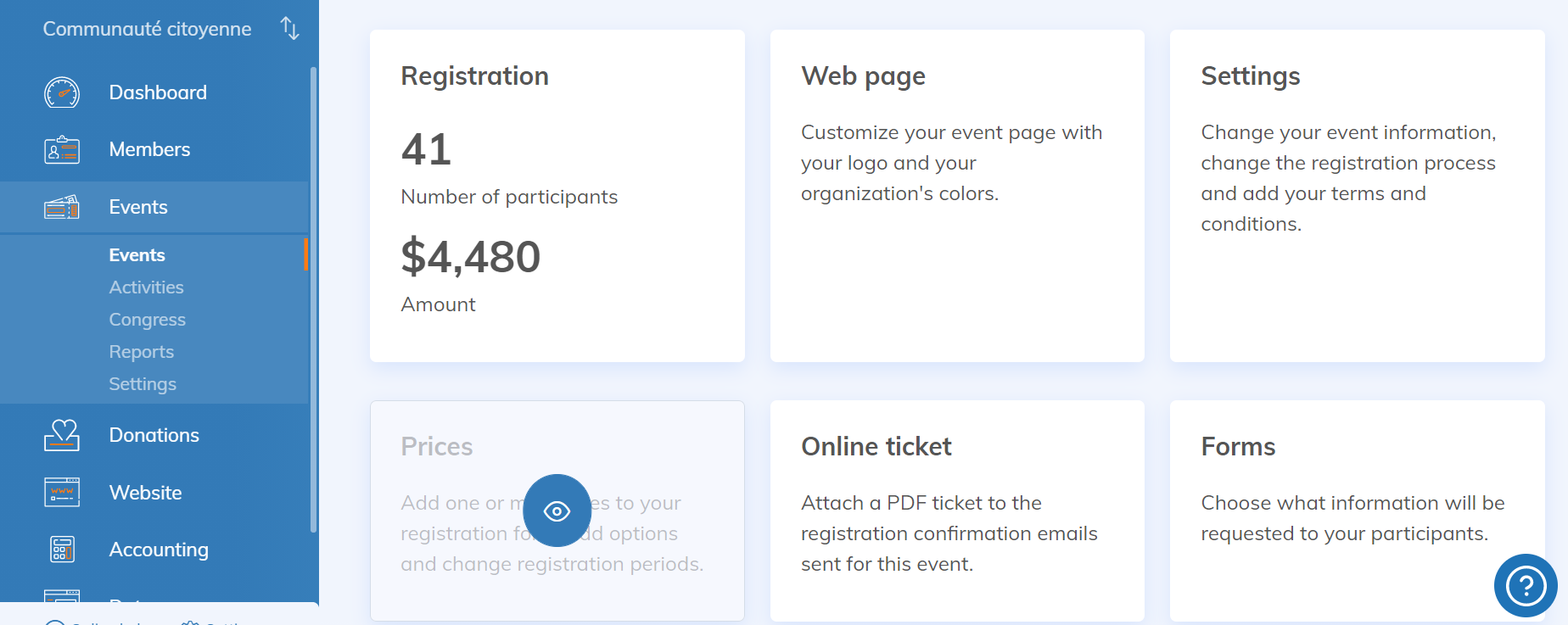
Then configure your new price. The name you give it appears on the registration form.
Restrict a price to certain participants
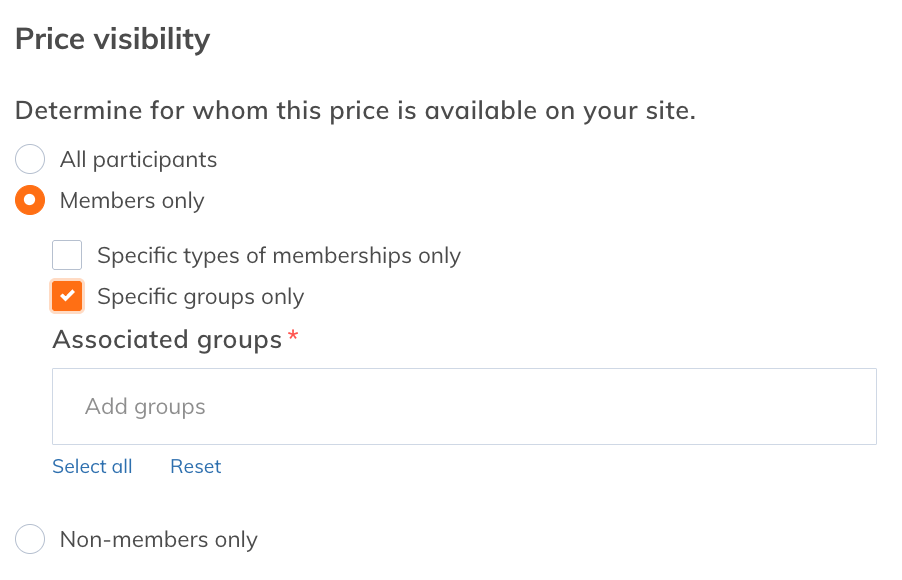
Once you manage members, you can create discounted or exclusive prices for your members. In the Price visibility section, determine who the price is available to on your site:
- All participants: the price is shown to everyone who registers, including logged-in members.
- Members only: the price is shown only to logged-in members. People without an account on your site and members whose membership is no longer valid do not see it.
- Specific types of memberships only: create different prices depending on the member’s membership type (student, retiree, etc.). Only members with an active membership in one of the selected types can access the price.
- Specific groups only: restrict the price to logged-in members who belong to certain groups, to further segment which prices are shown. See Create custom groups.
- Non-members only: restrict the price to participants who register without logging into a member account. Visitors who are not logged in and members whose membership is expired or invalid can access it.
Associate options with a price
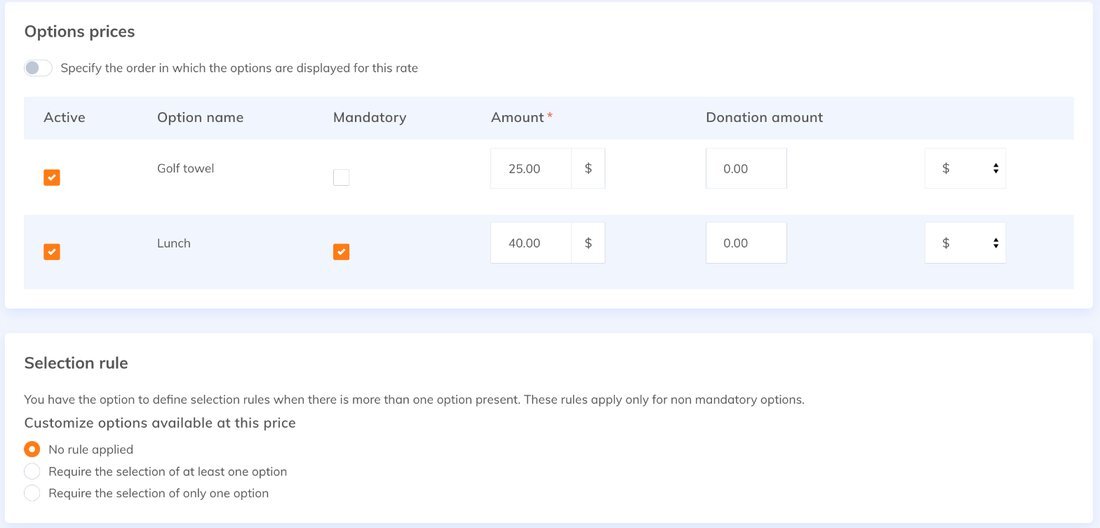
Before associating options with your prices, create your options. In the price settings, the Options prices section lists the event’s options: check Active to offer an option with this price and enter its amount. Turn on Specify the order in which the options are displayed for this rate to choose the order in which options appear.
Make an option mandatory
Check Mandatory next to an option to add it automatically (quantity 1) to every registration made with this price. This setting applies price by price: the same option can be mandatory for one price and optional for another.
Control how optional options are chosen
In the Selection rule section, choose how participants select the price’s optional options:
- No rule applied: participants freely choose the options they want, or none.
- Require the selection of at least one option: participants must choose at least one of the optional options.
- Require the selection of only one option: optional options are displayed as radio buttons and participants choose only one, for example for a meal choice.
The selection rule applies to all of the price’s optional options together; mandatory options are not affected. It does not let you create several separate choice groups or set a minimum or maximum number of options.
Limit the quantity of an option
The available quantity is set in the option itself, not in the price: see Limit the quantity of available options. When an option with a limited quantity is offered with several prices, sales from all of these prices add up toward the limit.
- Registrations awaiting payment count toward the quantity sold.
- Cancelled registrations do not count.
- An option in a cart that has not yet been checked out is not reserved.
To let a participant buy several units of the same option, see Allow participants to purchase multiple options.
Link the price to registration periods
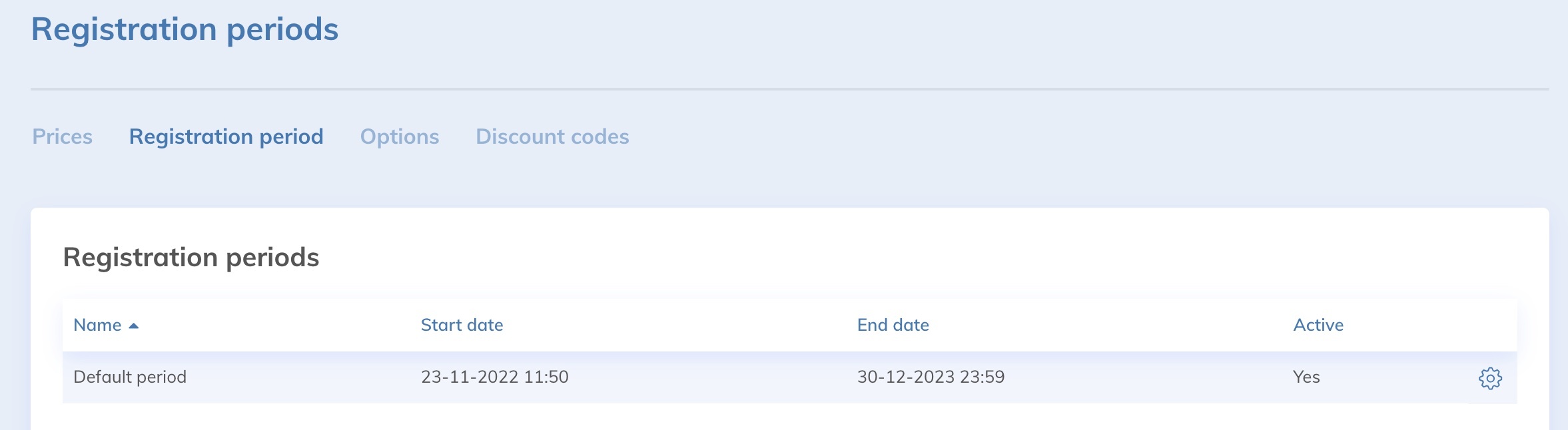
To be active and visible, a price must be linked to at least one registration period. Periods are defined in the Registration period tab.
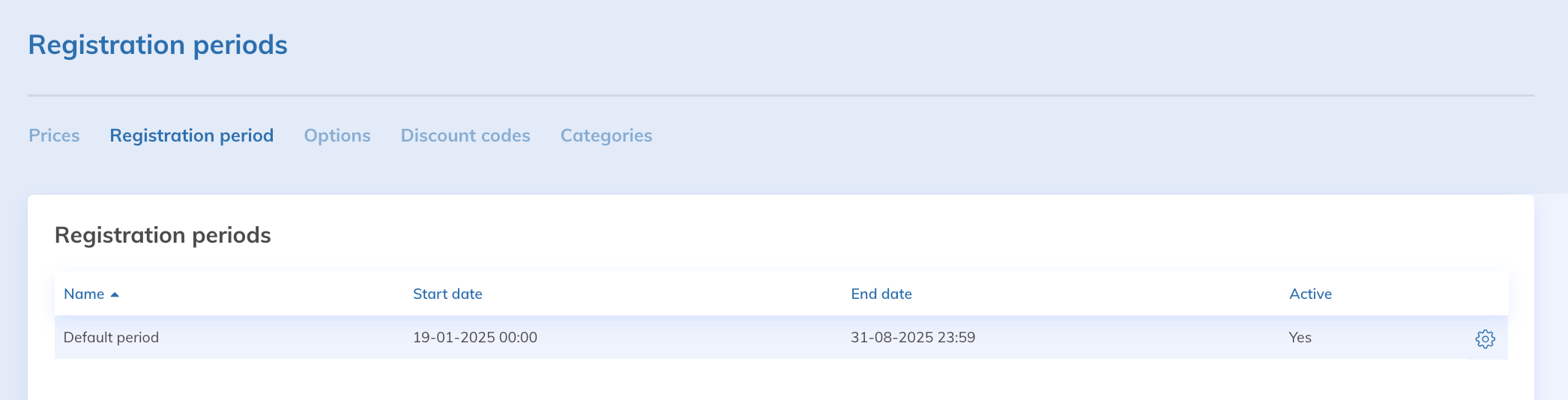
In the price settings, in the Price by period section, check the desired periods and enter the corresponding amount.
When registering on your site, participants only see prices:
- that apply to their membership type or group;
- that are linked to the current registration period.
To offer an early bird price, or vary the price depending on when participants register, create several registration periods. See Create and manage registration periods for an event.
Frequently asked questions
Can participants make a donation or voluntary contribution when they register?
Event prices do not include a donation or voluntary contribution option. However, you can issue a tax receipt for the full amount or a percentage of the registration fee as part of a benefit event: see Benefit events: issue a tax receipt for registration.