
Your account's billing information (contact, address and payment method) is managed under Settings > Billing.
In this article
Change the billing contact and address
- Go to Settings > Billing > Contact and billing address.
- Fill in or edit the two sections of the form:
- Billing Contact: contact name, email, CC email and phone number.
- Billing Address: name of the organization, address, city, postal code, country and province.
- Click Next Step.
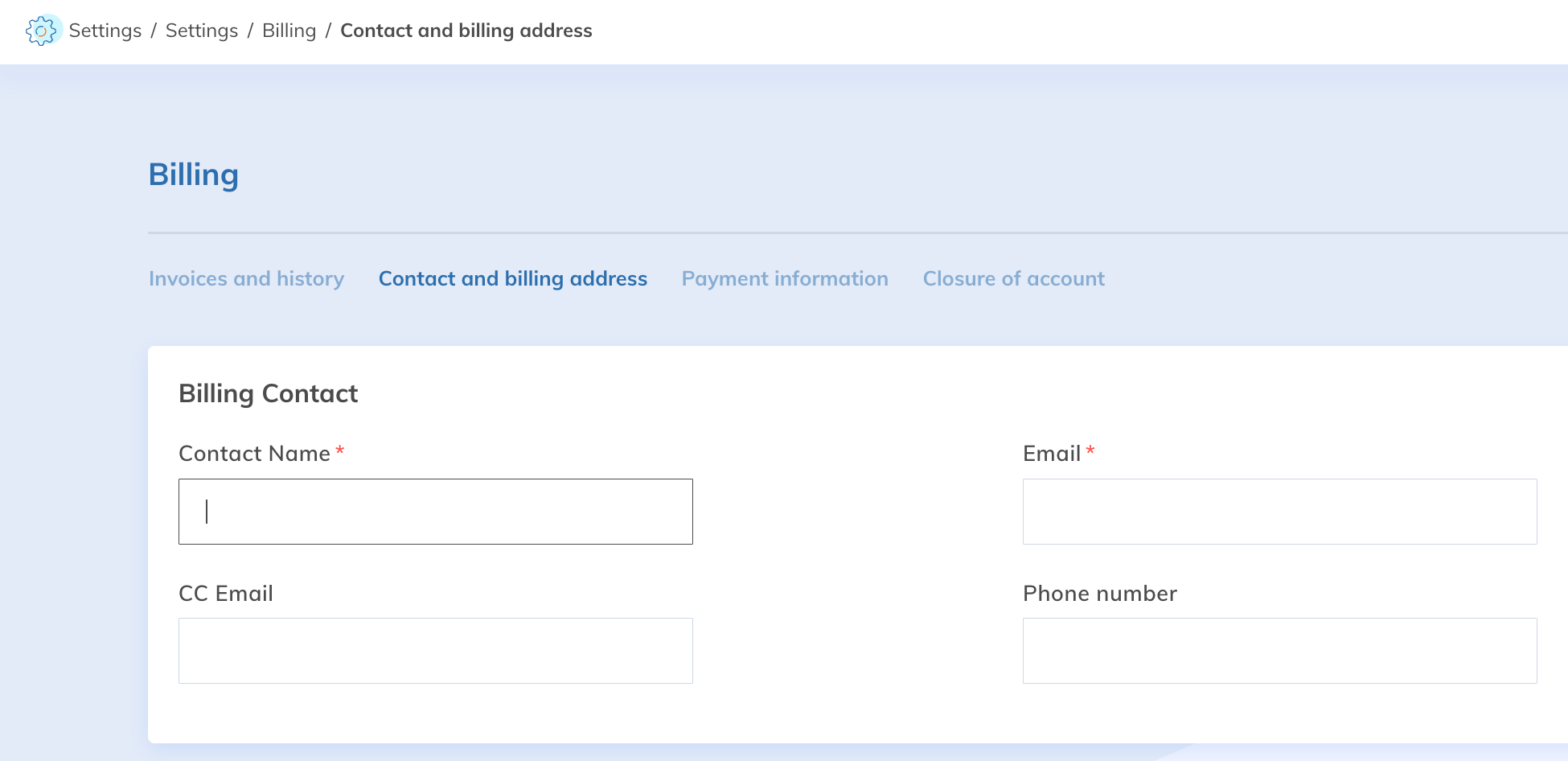
The invoice emailed after each payment also goes to the CC email: you can add the address of your treasurer, for example.
Add or change the credit card
The credit card is saved on the secure page of our payment partner, Stripe.
- Go to Settings > Billing > Payment information. You are redirected to the Stripe page.
- Click Add payment method, or edit the existing card.
- Enter the cardholder's name, the card number, the expiry date, the CVC and the postal code.
- Click Return to Yapla Inc.
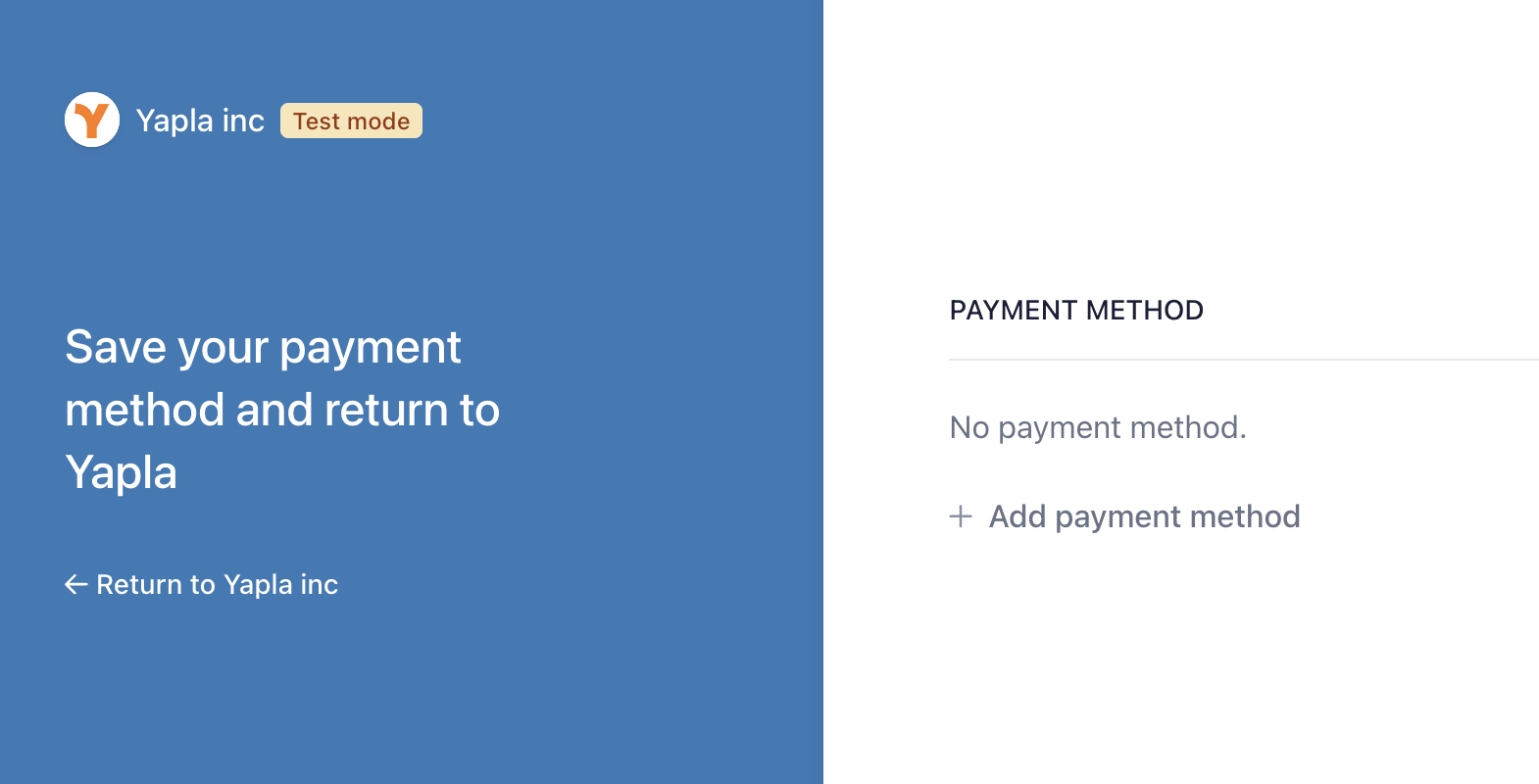
Update your card before it expires: a declined charge starts the period described in About outstanding balances.
Accepted payment methods
Paid plans are paid by Visa or Mastercard credit card. The Free plan requires no payment.
Your organization does not have a credit card? A prepaid Visa card can be used to pay for the subscription.